Container Image Signing
Container Image Signing
Section titled “Container Image Signing”Sign OCI container images using the QCecuring platform.
QCecuring signs the immutable image digest, not the mutable tag.
All private keys remain protected inside QCecuring and are never exposed to the registry.
Signatures are stored as OCI-compatible artifacts alongside the image.
Architecture Overview
Section titled “Architecture Overview”Container Registry → Resolve Digest → QCecuring Signer → Signing Agent → QCecuring Platform → HSM / KMSPrerequisites
Section titled “Prerequisites”Before signing:
- QCecuring Platform is running
- Signing Agent is installed and running
- A signing key exists in QCecuring
- Docker CLI is installed
- You have push access to the registry
Step 1 — View the image on Docker Registry
Section titled “Step 1 — View the image on Docker Registry”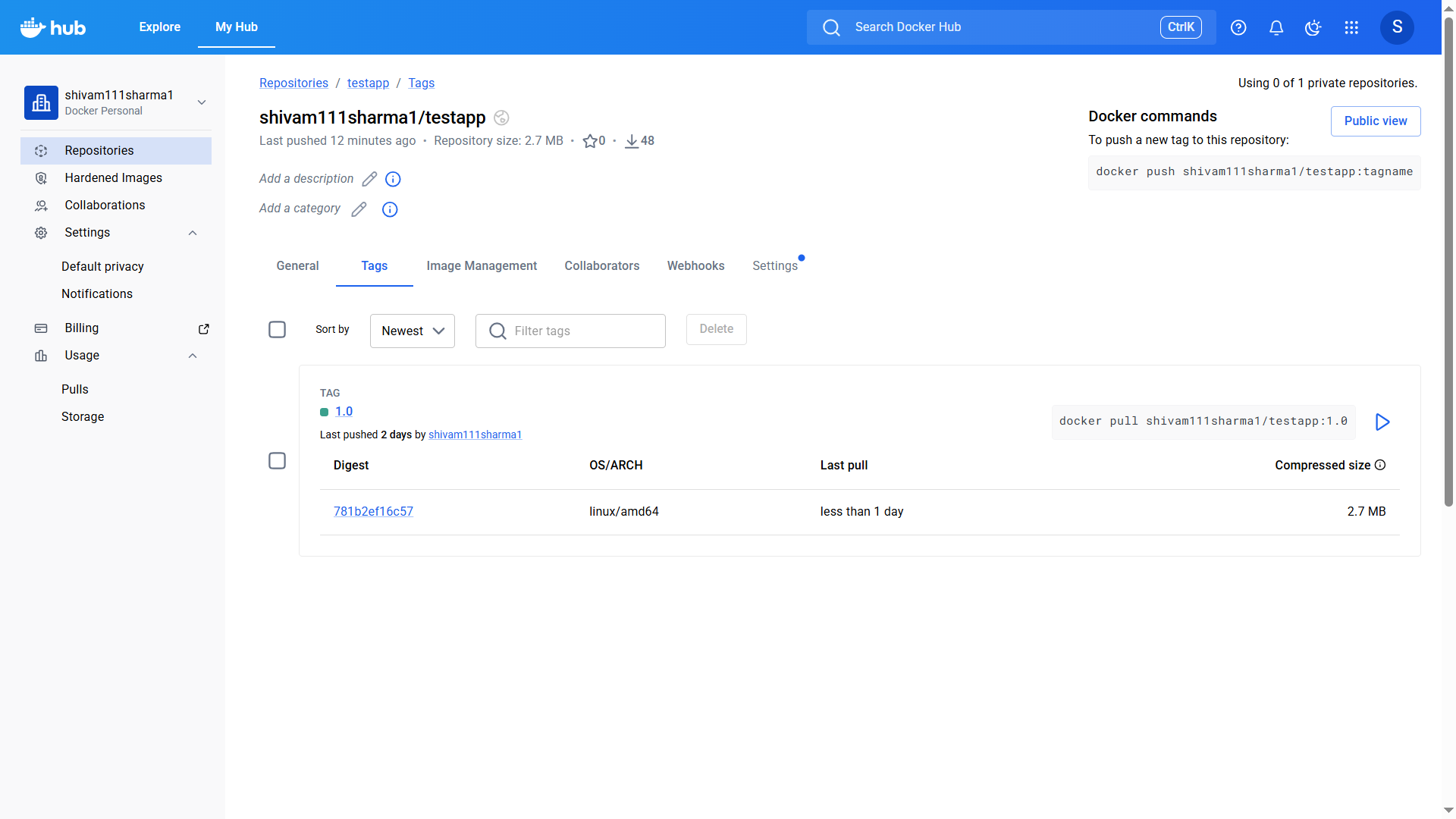
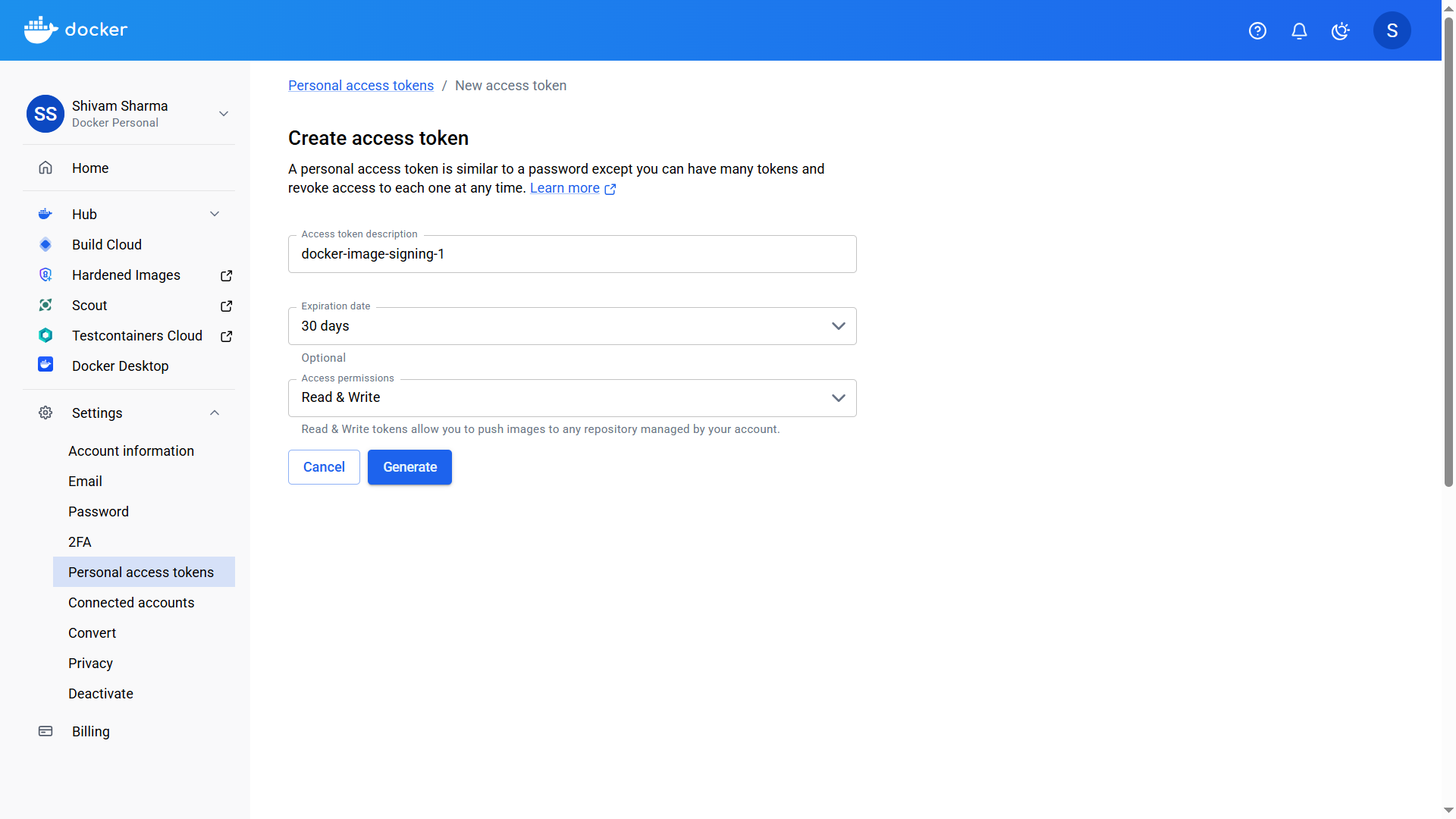
Step 2 — Create Docker Access Token
Section titled “Step 2 — Create Docker Access Token”- Navigate to Docker Hub → Personal Access Tokens
- Create a new token with Read & Write permissions
- Copy the generated token
After generation:
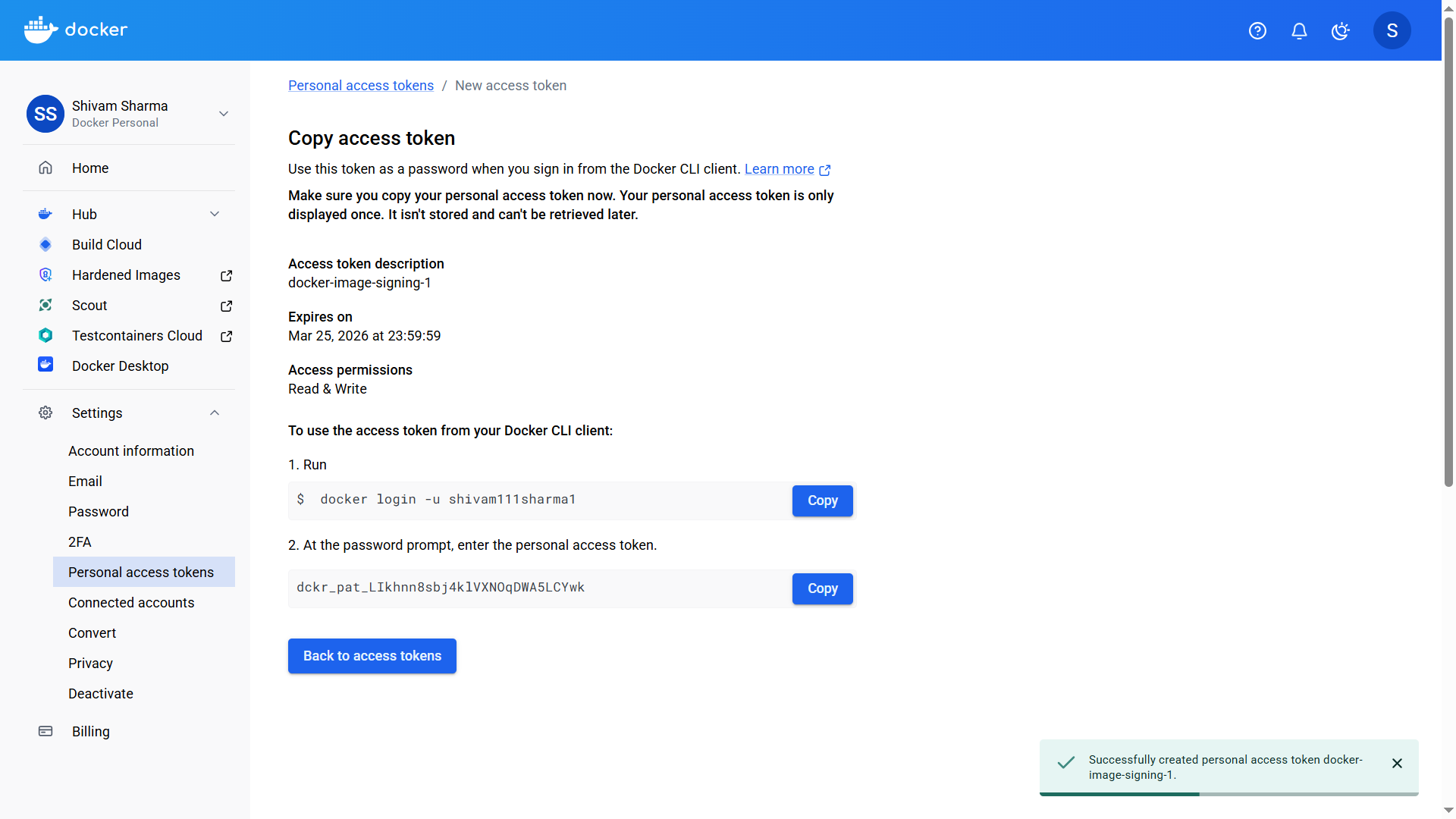
Step 3 — Login to Docker Registry
Section titled “Step 3 — Login to Docker Registry”Login using your Docker username:
docker login -u <your-username>Paste the Personal Access Token when prompted.

Step 4 — Pull the Image
Section titled “Step 4 — Pull the Image”Ensure the image exists locally:
docker pull shivam111sharma1/testapp:1.0
Step 5 — Sign the Image
Section titled “Step 5 — Sign the Image”Run the QCecuring container signer:
java -jar qcecuring-container-signer.jar sign \ --image shivam111sharma1/testapp:1.0 \ --key-id <YourKeyId>The signer will:
- Resolve the image digest
- Generate Cosign-compatible payload
- Sign via QCecuring Agent
- Upload signature artifact to registry
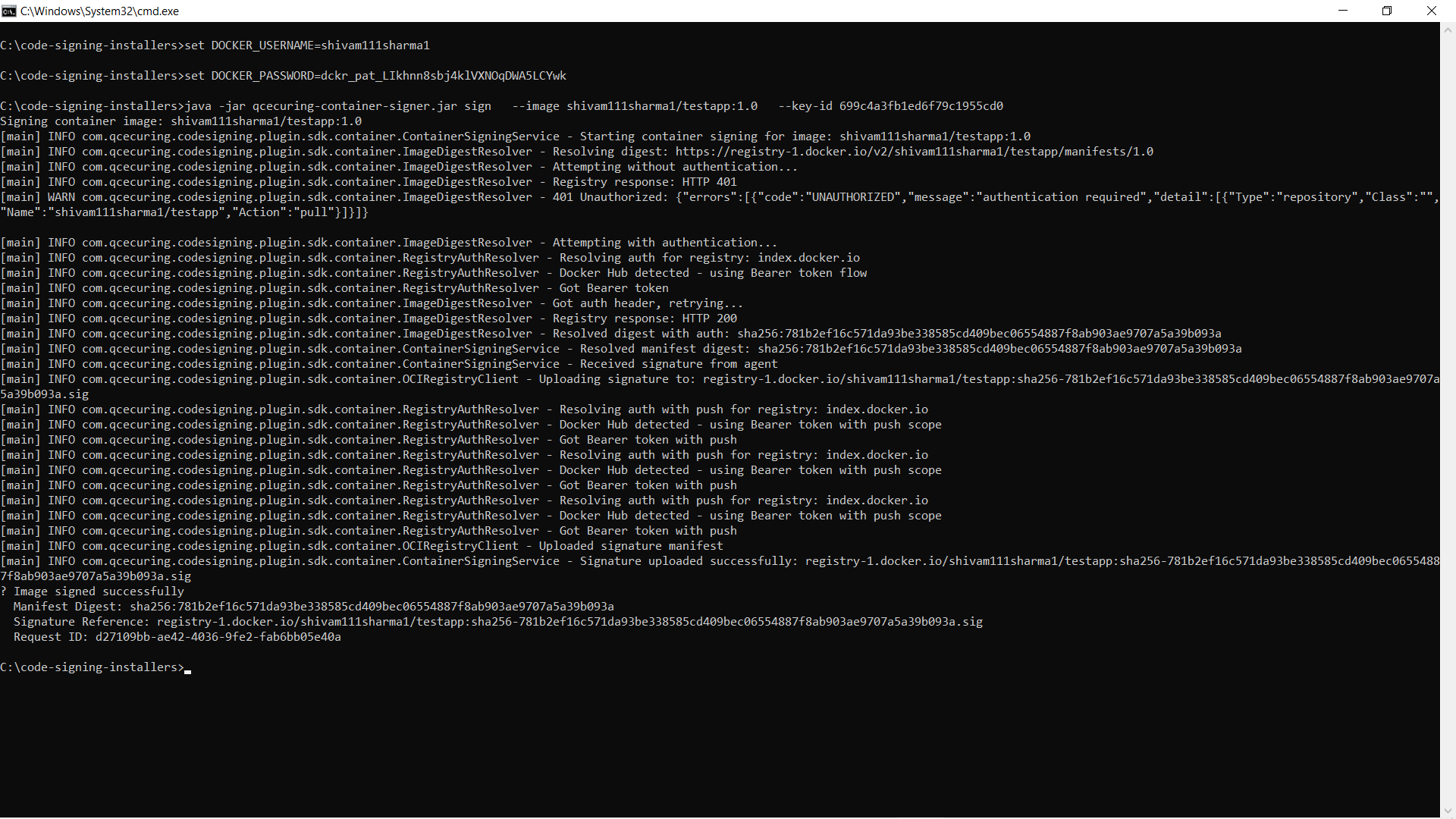
Expected output:
Image signed successfullyStep 6 — Verify the Signature
Section titled “Step 6 — Verify the Signature”java -jar qcecuring-container-signer.jar verify \ --image shivam111sharma1/testapp:1.0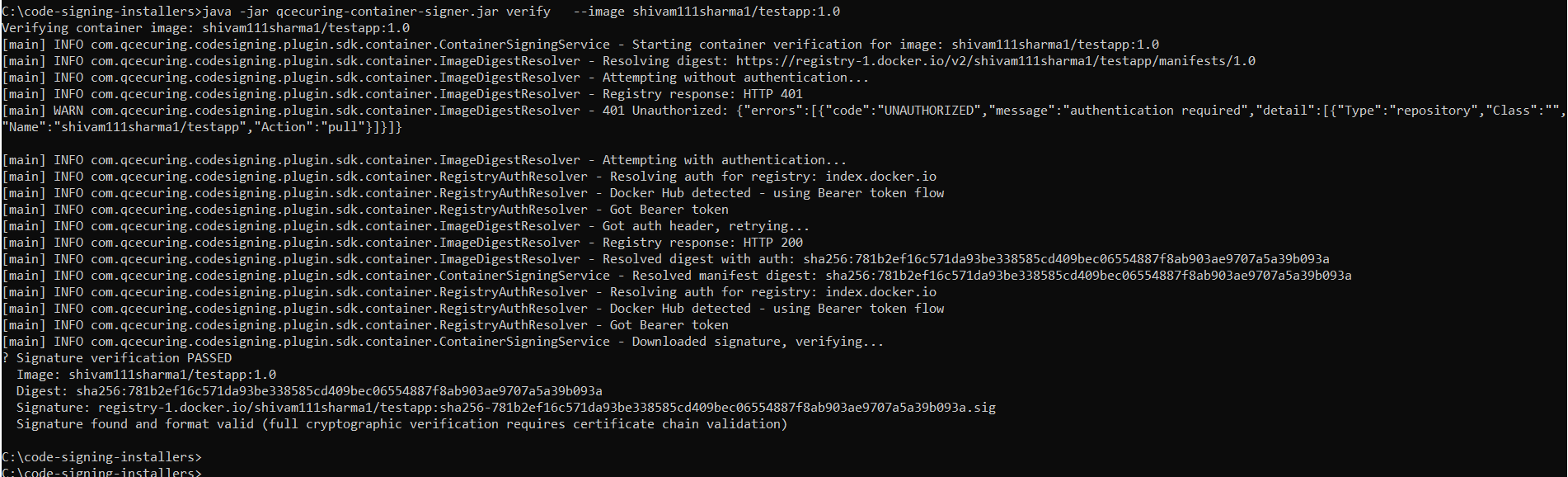
Expected:
Signature verification PASSEDStep 7 — View the Signature on Docker Registry
Section titled “Step 7 — View the Signature on Docker Registry”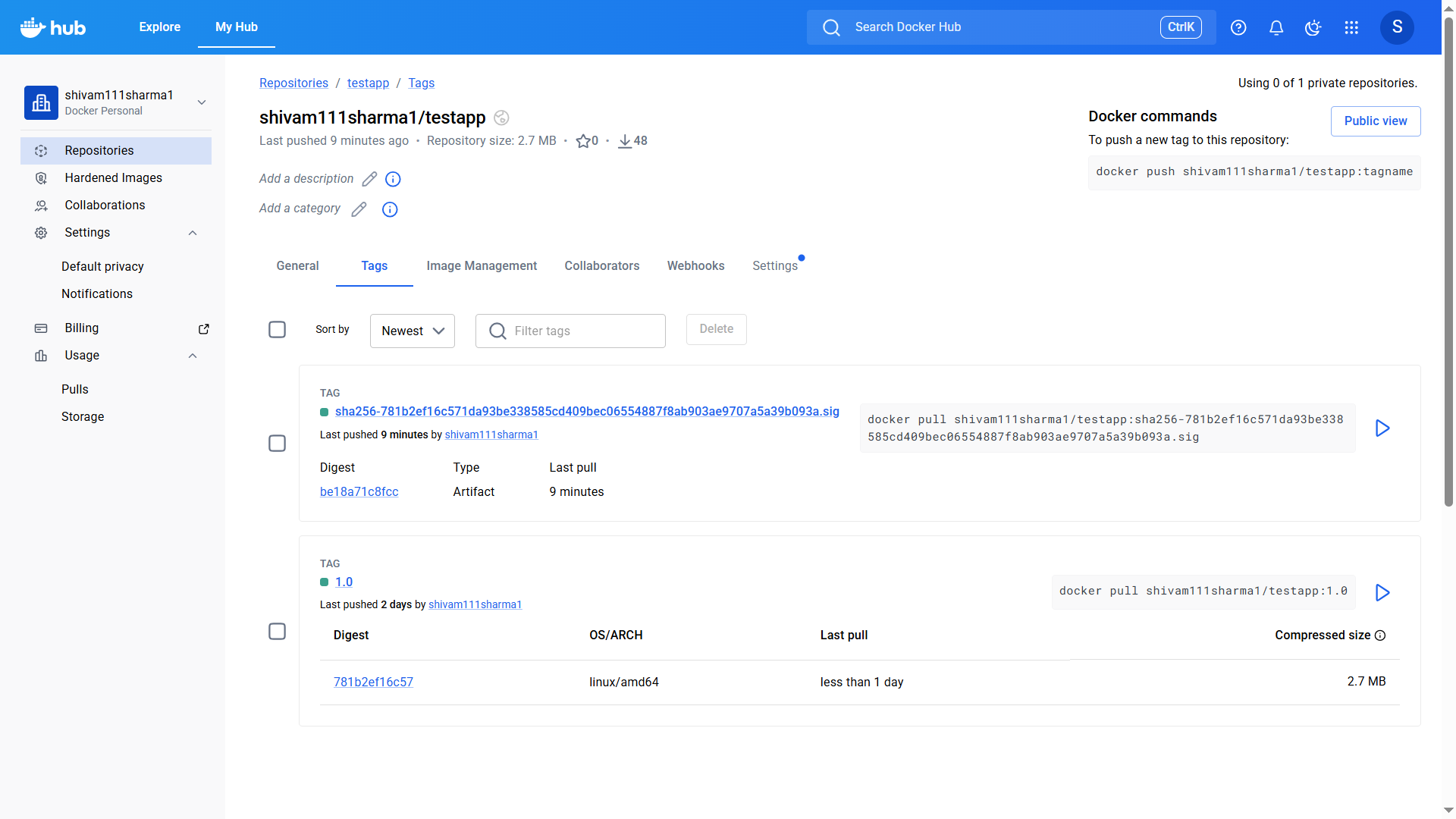
What Gets Signed?
Section titled “What Gets Signed?”QCecuring signs:
- The image digest (sha256:…)
- The OCI manifest
- Not the mutable tag
This ensures:
- Integrity across registry replication
- Protection against tag retargeting
- Compatibility with OCI registries
Authentication Options
Section titled “Authentication Options”The signer automatically reads credentials from:
~/.docker/config.jsonAlternatively, you can provide credentials via environment variables:
export DOCKER_USERNAME=myuserexport DOCKER_PASSWORD=mytokenCI/CD Example
Section titled “CI/CD Example”GitHub Actions
Section titled “GitHub Actions”- name: Sign Container Image run: | java -jar qcecuring-container-signer.jar sign \ --image myrepo/app:${{ github.sha }} \ --key-id ${{ secrets.QCECURING_KEY_ID }}Jenkins Pipeline
Section titled “Jenkins Pipeline”stage('Sign Image') { steps { sh ''' java -jar qcecuring-container-signer.jar sign \ --image myrepo/app:${BUILD_NUMBER} \ --key-id ${QCECURING_KEY_ID} ''' }}Troubleshooting
Section titled “Troubleshooting”Authentication Failed
Section titled “Authentication Failed”Run:
docker loginEnsure:
- Token has Read & Write permissions
- Repository exists
- User has push access
Signature Not Found
Section titled “Signature Not Found”- Confirm registry supports OCI artifacts
- Verify digest matches
- Ensure agent is running
Signing Fails
Section titled “Signing Fails”- Check agent logs
- Verify key is ACTIVE
- Confirm policy approval (if enabled)