Signing Agent
Signing Agent
Section titled “Signing Agent”The QCecuring Signing Agent enables secure local integration with native signing tools.
It provides a local IPC interface that:
- Receives signing requests from PKCS#11 (Linux) or KSP (Windows)
- Forwards digest signing requests to the QCecuring backend
- Returns signatures securely to the calling application
The agent does not store private keys locally.
All signing operations are performed by the backend platform using secure key storage.
Supported Platforms
Section titled “Supported Platforms”- Windows (KSP integration)
- Linux (PKCS#11 integration)
Prerequisites
Section titled “Prerequisites”- Java 21 or later
- Network access to QCecuring backend
- Platform API user credentials or mTLS certificate (production)
Installation
Section titled “Installation”Running the Agent
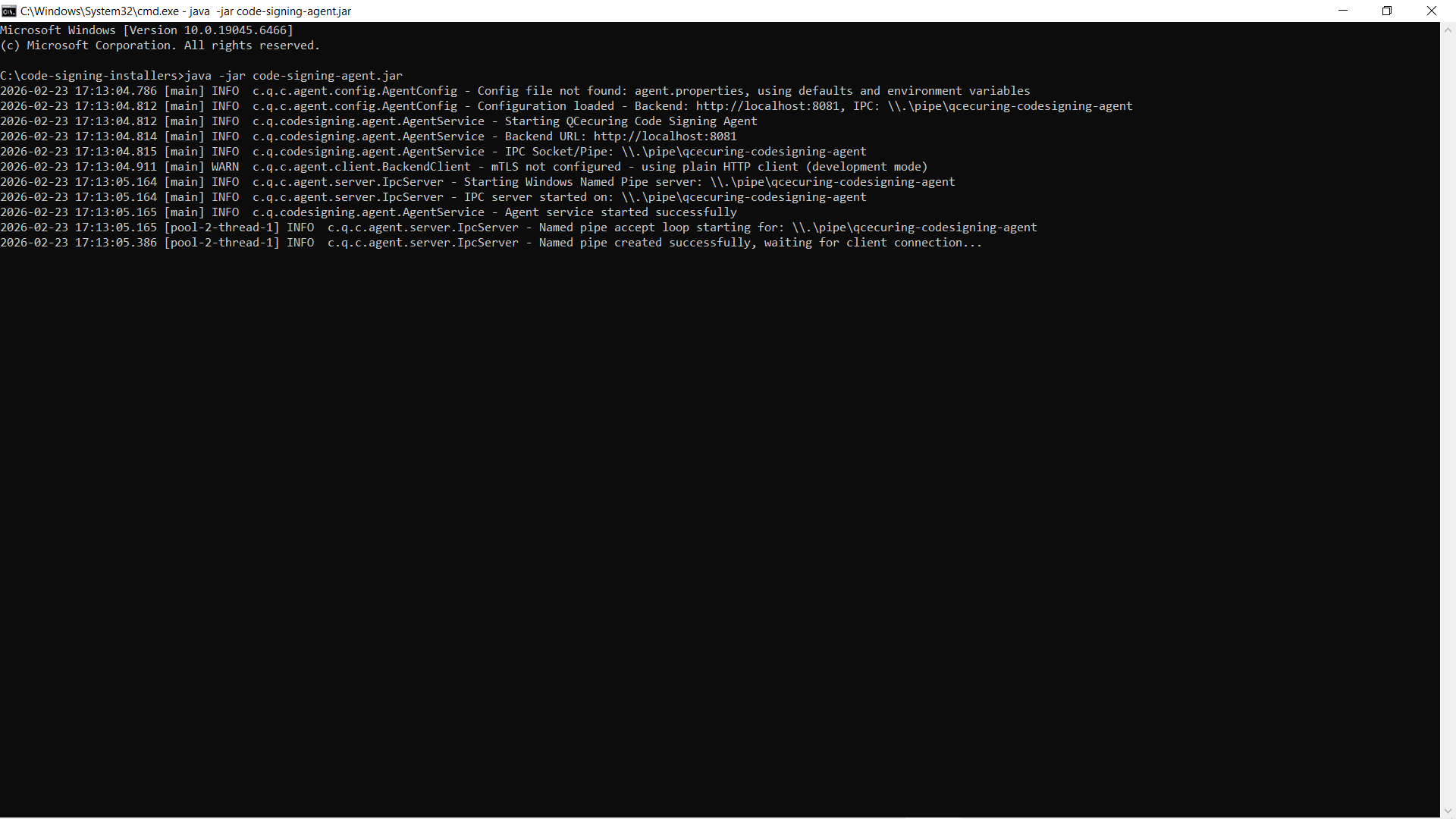
Section titled “Running the Agent”java -jar code-signing-agent.jarWhen started successfully, the agent:
- Creates a local IPC endpoint
- Connects to the backend platform
- Registers availability
Configuration
Section titled “Configuration”The agent can be configured via:
agent.properties- Environment variables
Example Configuration (agent.properties)
Section titled “Example Configuration (agent.properties)”backend.url=http://localhost:8080
# IPC settings (platform default values typically sufficient)
# Optional authentication# QCECURING_API_USERNAME=# QCECURING_API_PASSWORD=
# Optional mTLS (recommended for production)backend.mtls.client-cert-path=backend.mtls.client-cert-password=backend.mtls.ca-cert-path=
logging.level=INFOEnvironment Variables
Section titled “Environment Variables”export BACKEND_URL=http://localhost:8080export QCECURING_API_USERNAME=adminexport QCECURING_API_PASSWORD=strong_passwordIn production environments, credentials and certificates should be provided using secure secrets management mechanisms.
Running as a Service
Section titled “Running as a Service”Windows
Section titled “Windows”The agent can be installed as a Windows service using a service manager such as NSSM.
Once installed, manage using:
Start-Service QCecuring-Code-Signing-AgentStop-Service QCecuring-Code-Signing-AgentGet-Service QCecuring-Code-Signing-AgentLinux (systemd)
Section titled “Linux (systemd)”Install as a systemd service and manage using:
sudo systemctl start qcecuring-agentsudo systemctl status qcecuring-agentsudo systemctl enable qcecuring-agentIntegration Model
Section titled “Integration Model”Windows
Section titled “Windows”- The Windows KSP connects to the local agent.
- The agent forwards signing requests securely to the backend.
- The backend performs signing using secure key storage.
- The PKCS#11 provider connects to the local Unix socket.
- The agent forwards signing requests securely to the backend.
- The backend performs signing using secure key storage.
Verification
Section titled “Verification”To verify the agent is running:
- Ensure the process is active
- Confirm the backend dashboard shows the agent as online
- Test signing using jarsigner or signtool