Microsoft AD CS
Microsoft AD CS Integration
Section titled “Microsoft AD CS Integration”Integrate Microsoft Active Directory Certificate Services (AD CS) with SSL-CLM to:
- Issue certificates using AD CS templates
- Renew certificates automatically
- Revoke certificates
- Discover and sync certificate templates
- Maintain continuous CA inventory refresh
SSL-CLM integrates with Microsoft AD CS through a Windows Agent deployed on a domain-joined server. The agent executes native certificate enrollment operations locally and reports results securely to the platform.
Architecture
Section titled “Architecture”SSL-CLM Platform││ (mTLS, Pull-Based Jobs)▼Windows SSL-CLM Agent (domain-joined server)││ (certutil / certreq — local command execution)▼Microsoft AD CS (Certificate Authority)The agent must run on a domain-joined Windows server that has network access to the AD CS server (typically via RPC on TCP 135 + dynamic ports).
Prerequisites
Section titled “Prerequisites”- Microsoft AD CS installed and running (Enterprise CA recommended)
- A domain-joined Windows server where the SSL-CLM Agent will run
- The agent server must have network access to the AD CS server
- Java 21+ installed on the agent server
- A bootstrap token generated from the SSL-CLM platform
Step 1 — Verify AD CS Installation
Section titled “Step 1 — Verify AD CS Installation”Confirm the AD CS role is installed and running on your CA server.
Open Server Manager and verify the Active Directory Certificate Services role is listed.
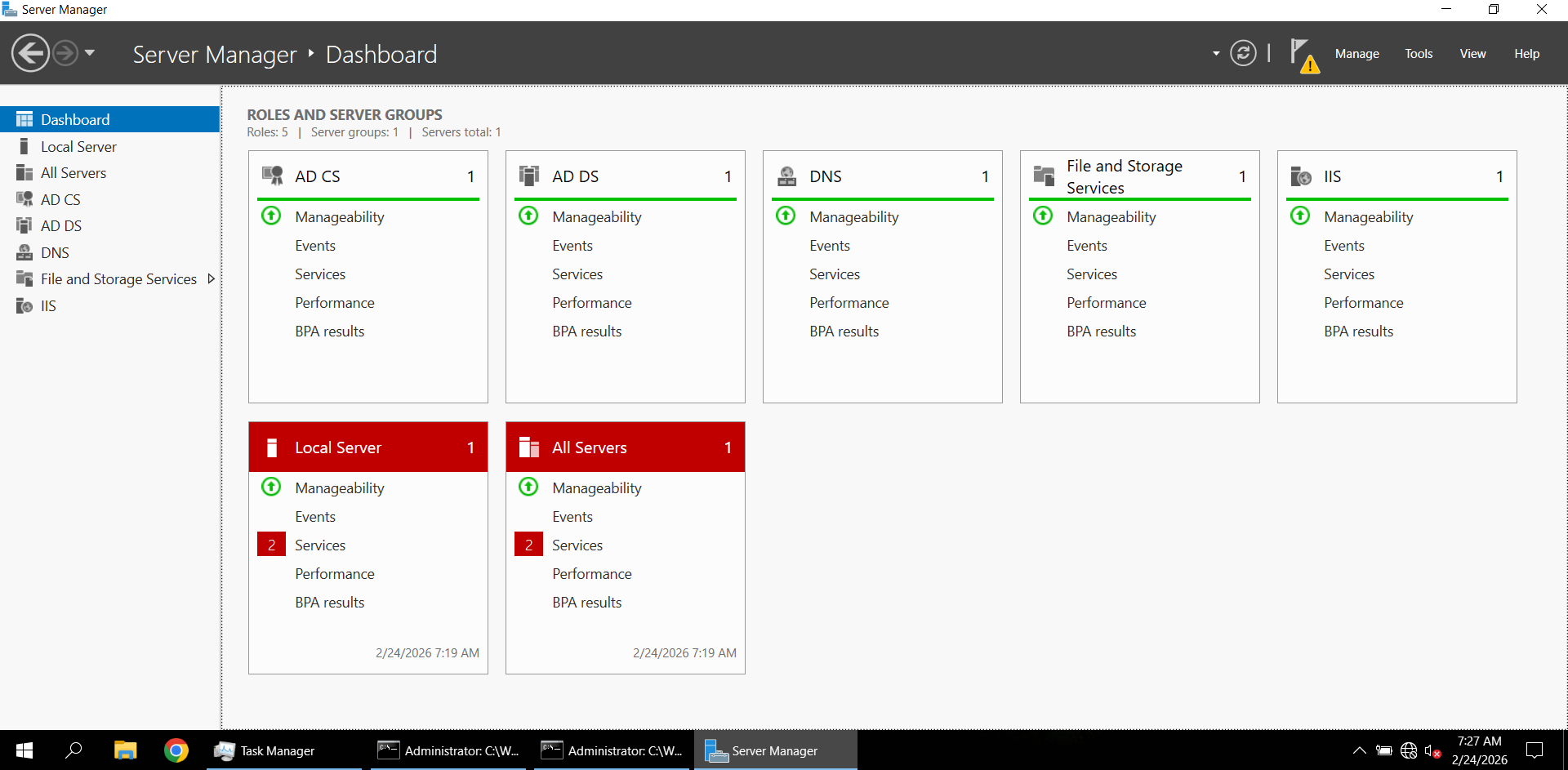
Open the Certification Authority console (certsrv.msc) and confirm your CA is visible:
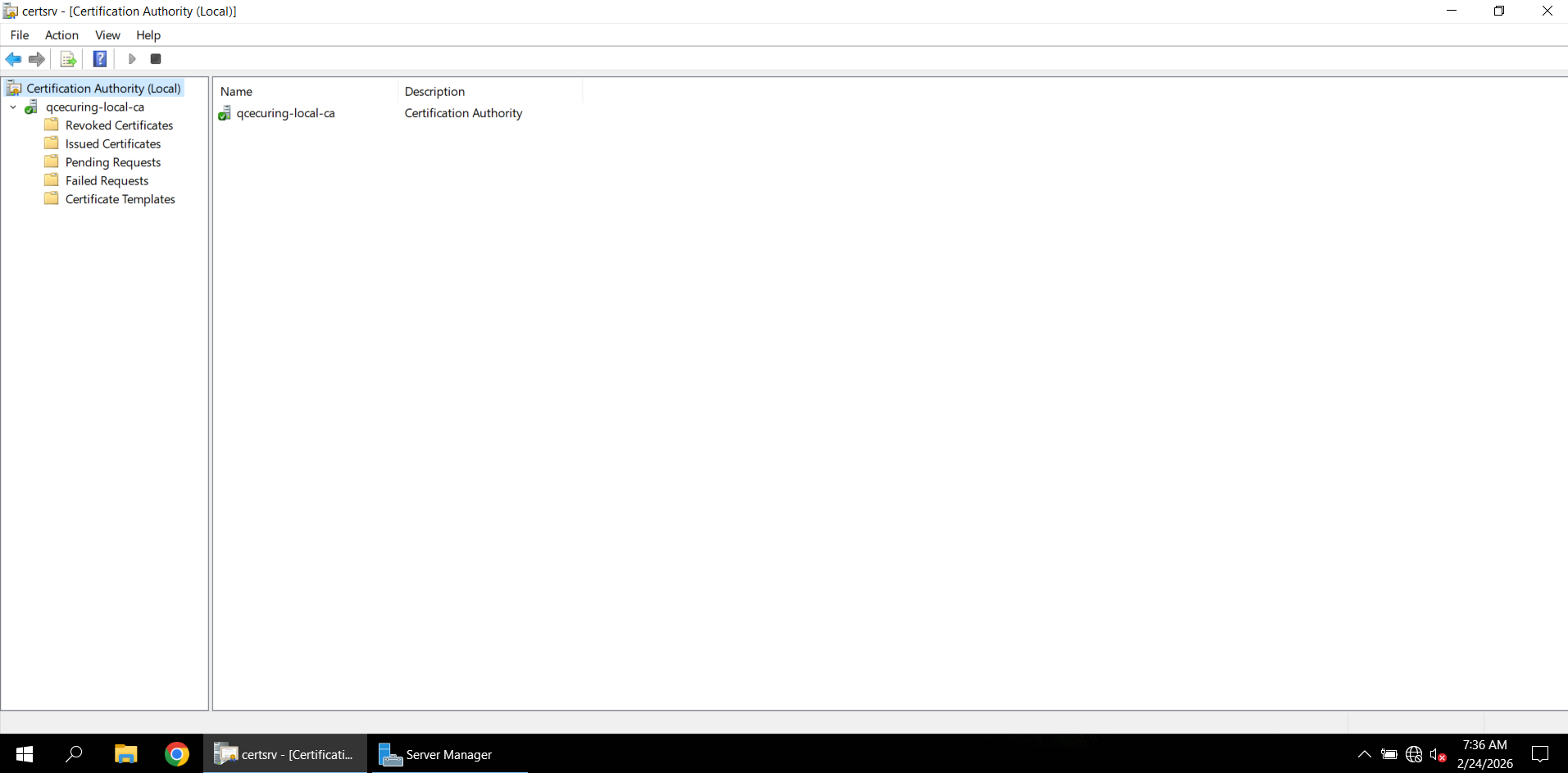
Note your CA’s configuration name (e.g., WIN-6RM7FR3L231\qcecuring-local-ca). You’ll need this later.
Step 2 — Verify CA Connectivity
Section titled “Step 2 — Verify CA Connectivity”From the Windows server where the agent will run, test connectivity to the CA:
certutil -ping -config "WIN-6RM7FR3L231\qcecuring-local-ca"Successful output confirms the CA is reachable:
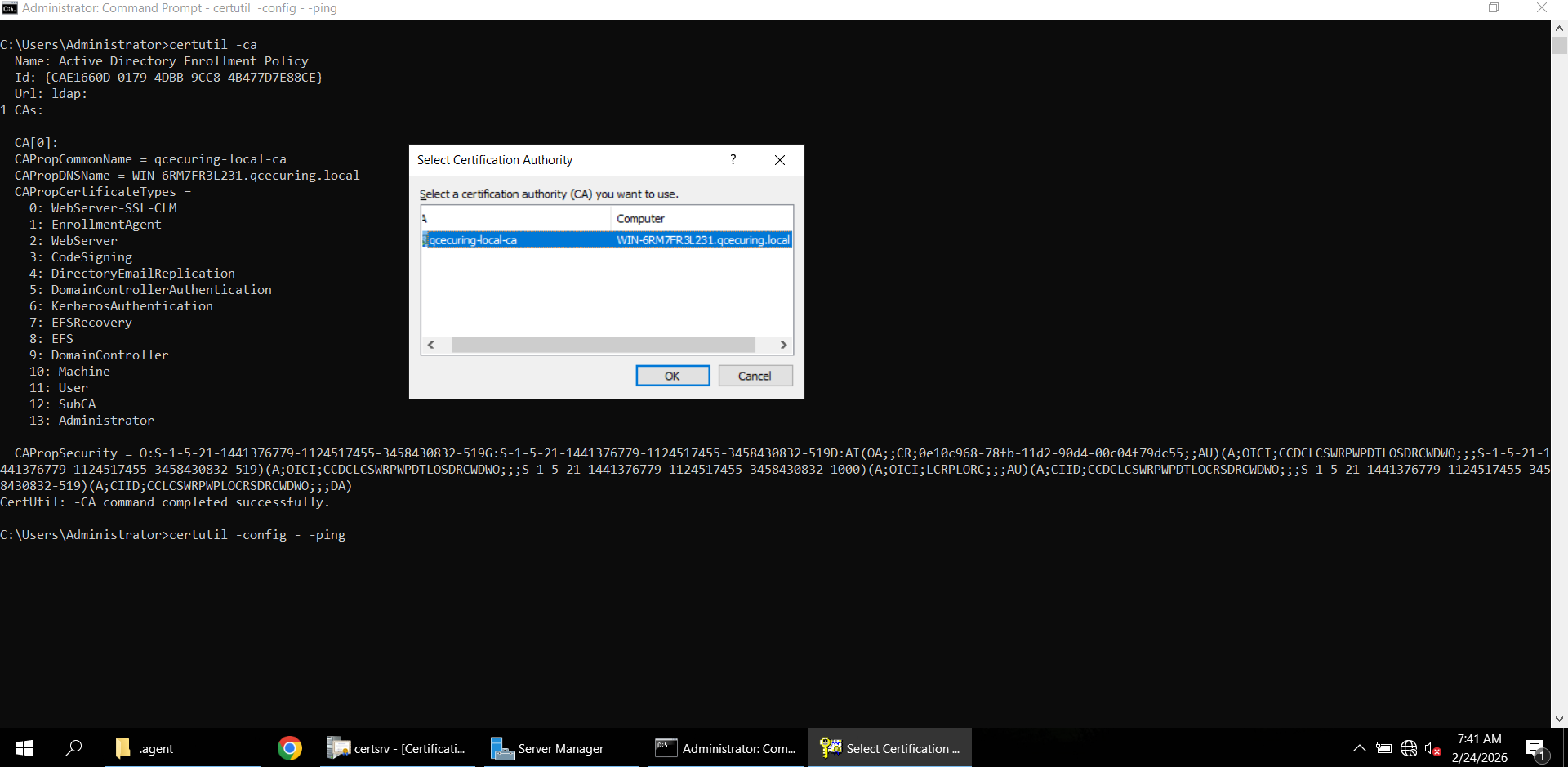
If you receive “RPC Server Unavailable”:
- Check TCP port 135 is open between the agent server and the CA
- Verify firewall rules allow RPC dynamic ports
- Ensure the CA service (
CertSvc) is running - Confirm DCOM permissions
Step 3 — Register the Agent
Section titled “Step 3 — Register the Agent”Before adding the CA, you need an agent registered on the Windows server.
- In the SSL-CLM UI, navigate to Infrastructure → Agents
- Click + Register Agent
- Enter the hostname of your Windows server
- Click Generate Token and copy the bootstrap token
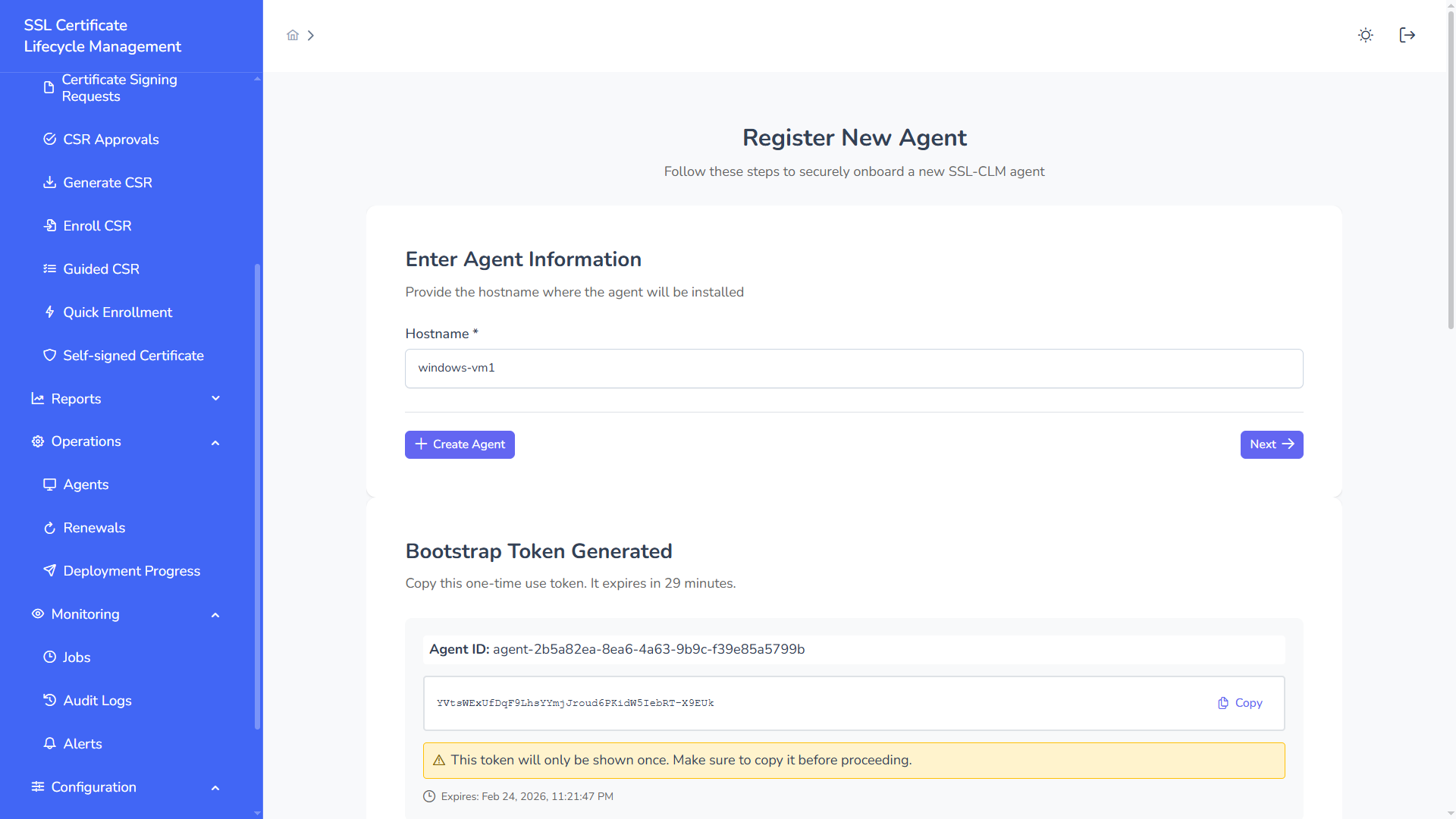
Step 4 — Start the Windows Agent
Section titled “Step 4 — Start the Windows Agent”On the Windows server, start the agent with just the platform URL and bootstrap token:
$env:API_URL = "https://ssl-clm.example.com:8080"$env:AGENT_BOOTSTRAP_TOKEN = "YOUR_BOOTSTRAP_TOKEN"
java -jar ssl-clm-agent.jar
That’s it for the agent. The agent does not store any CA configuration locally — all MSCA settings (server hostname, credentials, CA identifier) are configured on the platform and delivered to the agent via job payloads when operations are executed.
The agent starts, registers with the platform, and begins reporting:
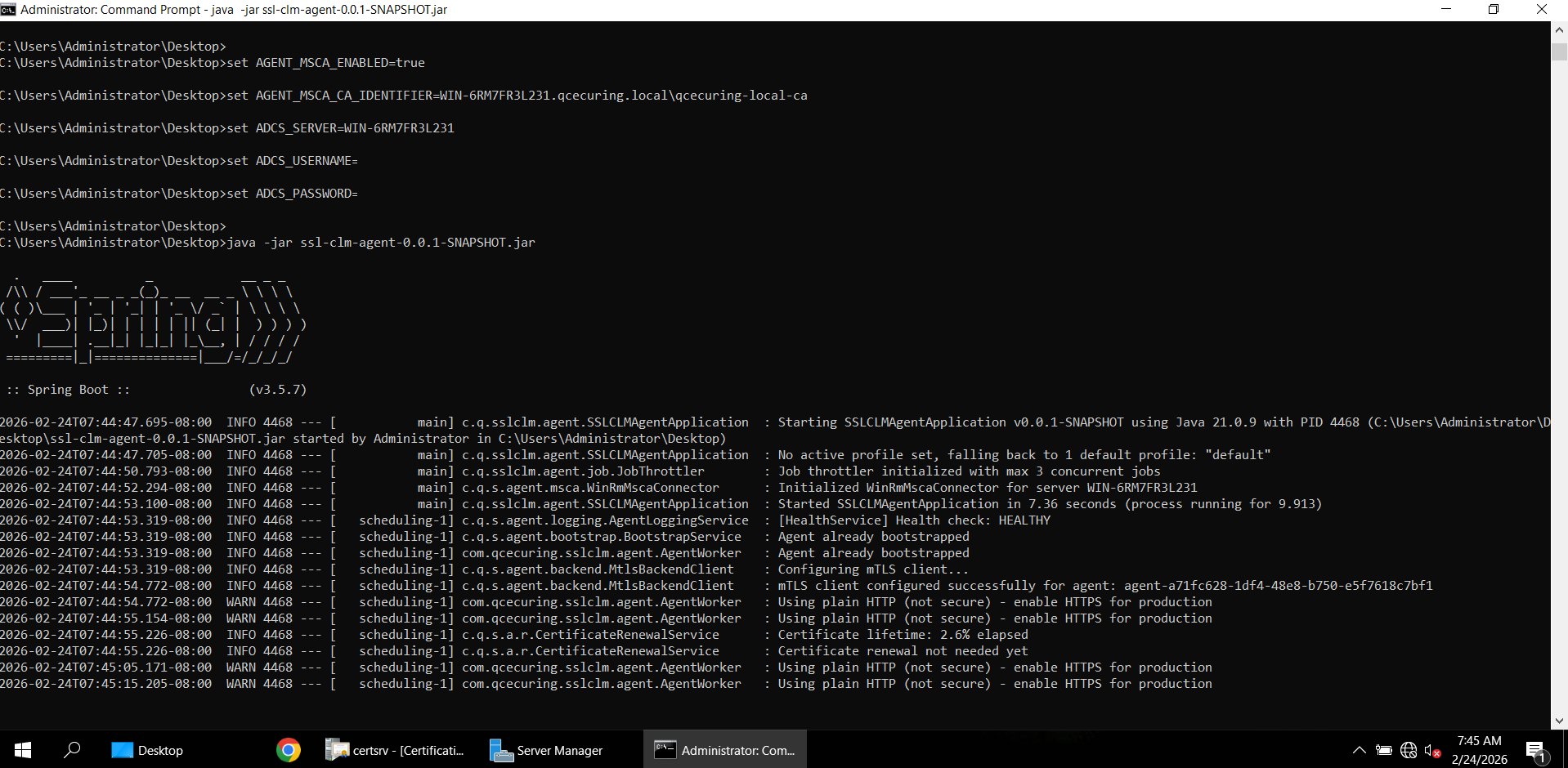
After successful bootstrap, the agent appears as ONLINE in the Agents list.
Step 5 — Add the Certificate Authority
Section titled “Step 5 — Add the Certificate Authority”Now add the CA in the platform. All MSCA configuration is stored here — not on the agent.
- Navigate to Infrastructure → Certificate Authorities
- Click + Add CA
- Select Microsoft CA (AD CS) from the type cards
- Fill in the configuration:
Connection:
| Field | Description | Example |
|---|---|---|
| Name | Friendly display name | MSCA Production |
| WinRM Server | Windows server running AD CS (WinRM endpoint) | adcs-server.corp.local |
| WinRM Port | WinRM port (5985 for HTTP, 5986 for HTTPS) | 5985 |
| Use HTTPS | Whether to use HTTPS for WinRM | false |
Authentication:
| Field | Description | Example |
|---|---|---|
| Username | WinRM username (NTLM authentication) | DOMAIN\admin |
| Password | WinRM password (stored encrypted in vault) | •••••••• |
CA Settings:
| Field | Description | Example |
|---|---|---|
| CA Identifier | certutil config string: hostname\CA-Name | WIN-6RM7FR3L231\qcecuring-local-ca |
Agent & Sync:
| Field | Description | Example |
|---|---|---|
| Agent | Select the agent registered in Step 3 | WIN-6RM7FR3L231 |
| Discovery Interval | Hours between CA inventory syncs | 24 |
- Click Save
The platform stores the credentials securely in the vault. When a job (issuance, revocation, template discovery) is dispatched to the agent, the config is included in the job payload — the agent never stores credentials locally.
Step 6 — Load Templates
Section titled “Step 6 — Load Templates”After the CA is configured, load available certificate templates:
- Open the CA detail page (click the CA name)
- Click Load Templates
This triggers a CA_REFRESH job. The agent queries AD CS for available certificate templates:
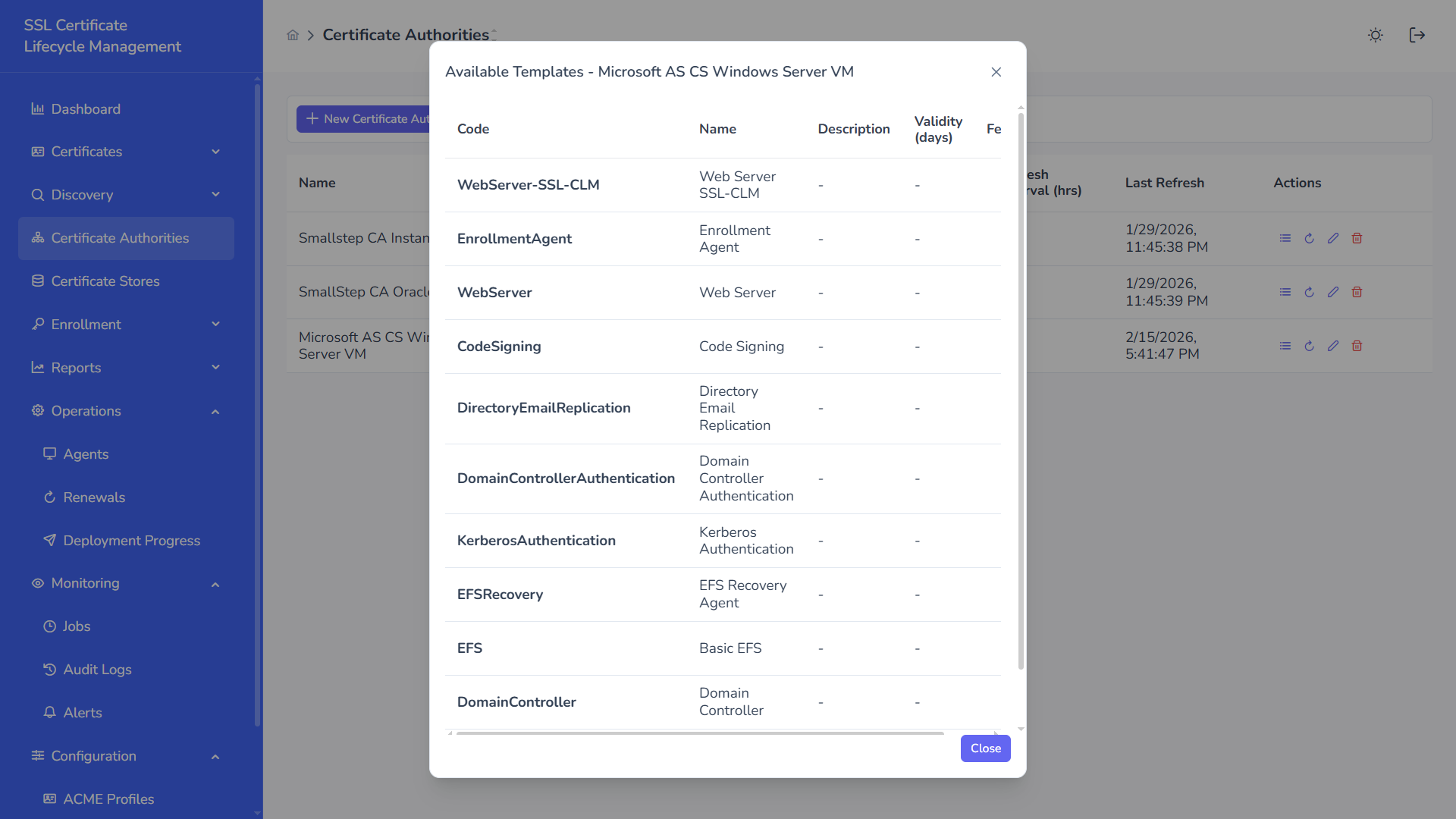
Discovered templates include:
- WebServer
- CodeSigning
- EnrollmentAgent
- Custom templates (e.g.,
WebServer-SSL-CLM)
Templates are used during certificate enrollment — users select which template to issue from.
Step 7 — Issue a Certificate
Section titled “Step 7 — Issue a Certificate”- Navigate to Certificates → + New Certificate
- Select Issue from CA mode
- Choose the Microsoft CA you configured
- Select a template (e.g., WebServer)
- Enter Common Name and SANs
- Click Submit
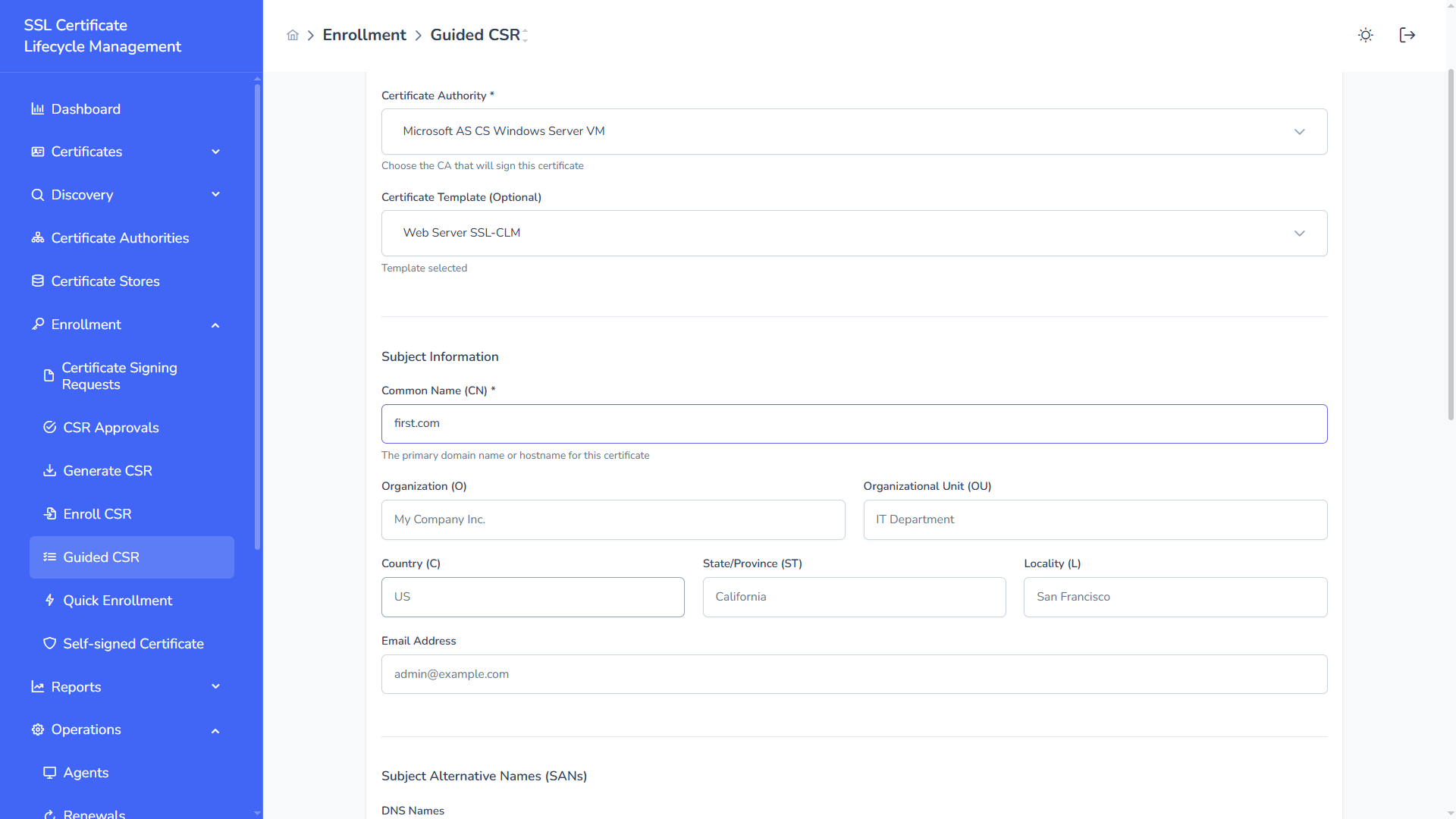
The platform:
- Generates a CSR
- Creates an
ISSUE_CERTjob - Agent picks up the job
- Agent submits the CSR to AD CS via
certreq - AD CS issues the certificate
- Agent returns the issued certificate to the platform
- Certificate appears in inventory with status Active
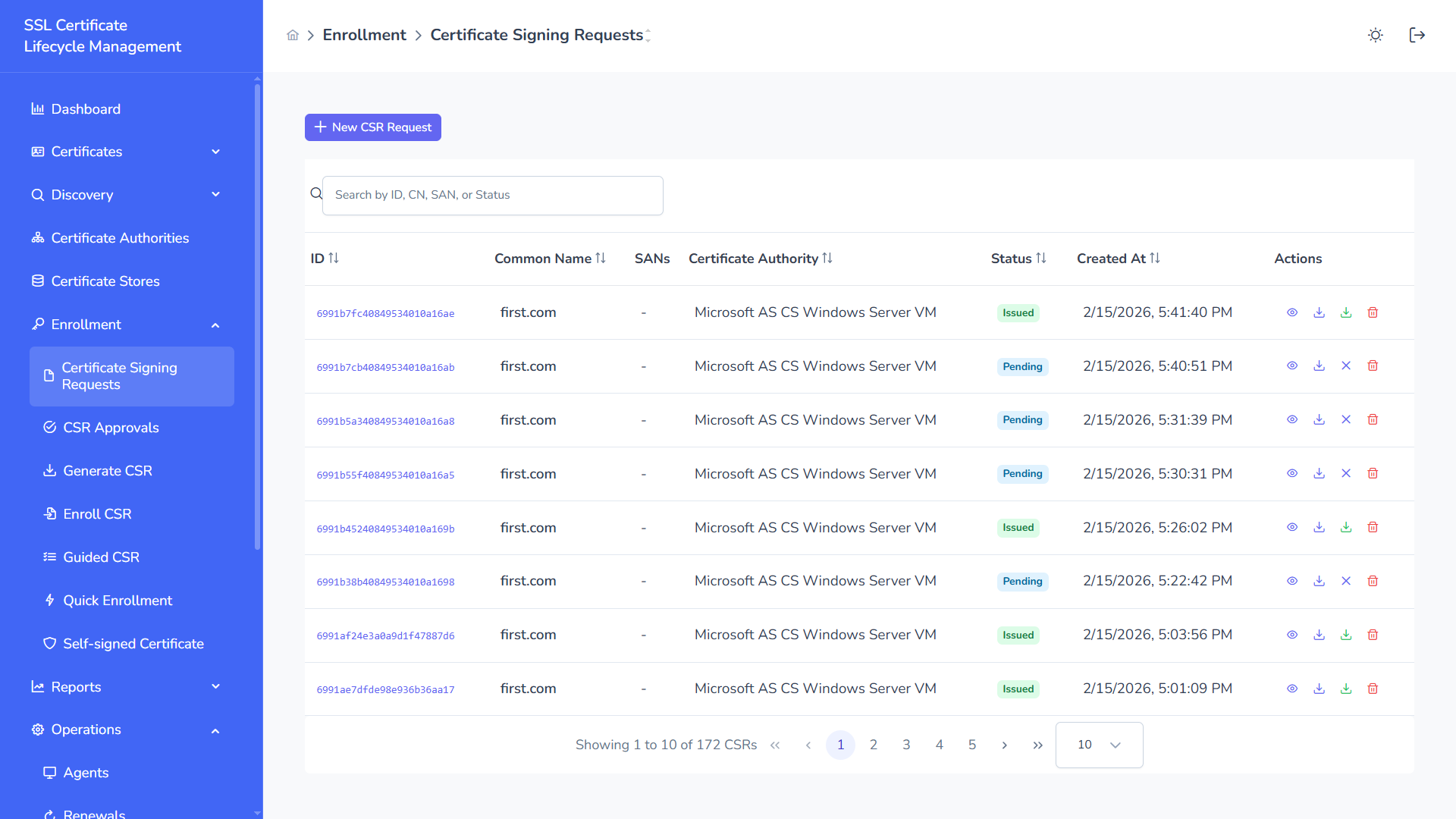
Step 8 — Revoke a Certificate
Section titled “Step 8 — Revoke a Certificate”When revocation is requested:
- Platform creates a
REVOKE_CERTjob - Agent picks up the job
- Agent executes revocation on AD CS using the MSCA request ID
- AD CS revokes the certificate and updates its CRL
- Platform updates certificate status to Revoked
Supported revocation reasons:
- Unspecified
- Key Compromise
- CA Compromise
- Affiliation Changed
- Superseded
- Cessation of Operation
Automated Renewal
Section titled “Automated Renewal”SSL-CLM monitors MSCA-issued certificates and renews them automatically:
- Policy renewal threshold triggers (e.g., 30 days before expiry)
- Platform creates a
RENEW_CERTjob - Agent generates a new CSR with the same subject/SANs
- Agent submits to AD CS using the same template
- New certificate is issued and replaces the old one
- If auto-deploy is configured, the new cert is pushed to stores
- Old certificate is archived
Authentication
Section titled “Authentication”The agent connects to AD CS via WinRM using NTLM authentication. The credentials (username/password) are configured on the CA entity in the platform and passed securely to the agent during job execution.
| Field | Format | Example |
|---|---|---|
| Username | DOMAIN\user or user@domain.com | CORP\svc-sslclm |
| Password | Domain password | (stored in vault) |
Recommendations:
- Use a dedicated service account for SSL-CLM
- Grant the service account Certificate Request permissions on target AD CS templates
- Do NOT use a Domain Admin account — follow least-privilege principles
- If WinRM HTTPS is available (port 5986), enable
useHttps: truefor encrypted transport
Template Permissions
Section titled “Template Permissions”For the agent to enroll certificates, the service account (or machine account) needs these permissions on the AD CS template:
- Read — Discover the template
- Enroll — Submit CSR and receive certificate
- Autoenroll (optional) — For auto-renewal scenarios
Configure these in the Certificate Templates MMC snap-in under the template’s Security tab.
Troubleshooting
Section titled “Troubleshooting”| Issue | Possible Cause | Resolution |
|---|---|---|
| Agent can’t reach CA | Network/firewall blocking RPC | Open TCP 135 + dynamic ports between agent and CA |
| ”RPC Server Unavailable” | CA service not running or DNS issue | Start CertSvc, verify DNS resolution |
| ”Access Denied” on enroll | Service account lacks template permissions | Grant Enroll permission on the template |
| Templates not loading | Agent not online or CA_REFRESH job failed | Check agent status, review job logs |
| Certificate stuck in “Pending” | Template requires CA manager approval | Approve in the CA console, or use auto-approve template |
| Wrong template | Template not published to the CA | Publish the template via certtmpl.msc |
Security Best Practices
Section titled “Security Best Practices”- Run the agent as a dedicated service account with minimal domain permissions
- Grant enrollment permissions only on specific templates — not all templates
- Use Kerberos authentication (avoid storing explicit passwords when possible)
- Enable audit logging on the CA for all enrollment operations
- Restrict the agent server’s network access to only the CA and the SSL-CLM platform
- Rotate the agent’s mTLS certificate before expiry
Related Pages
Section titled “Related Pages”- Certificate Authorities — Platform CA management
- Agents — Agent deployment and monitoring
- Agent Installation — Full agent setup guide
- CA Capability Matrix — Compare CA features