Platform Installation
Platform Installation
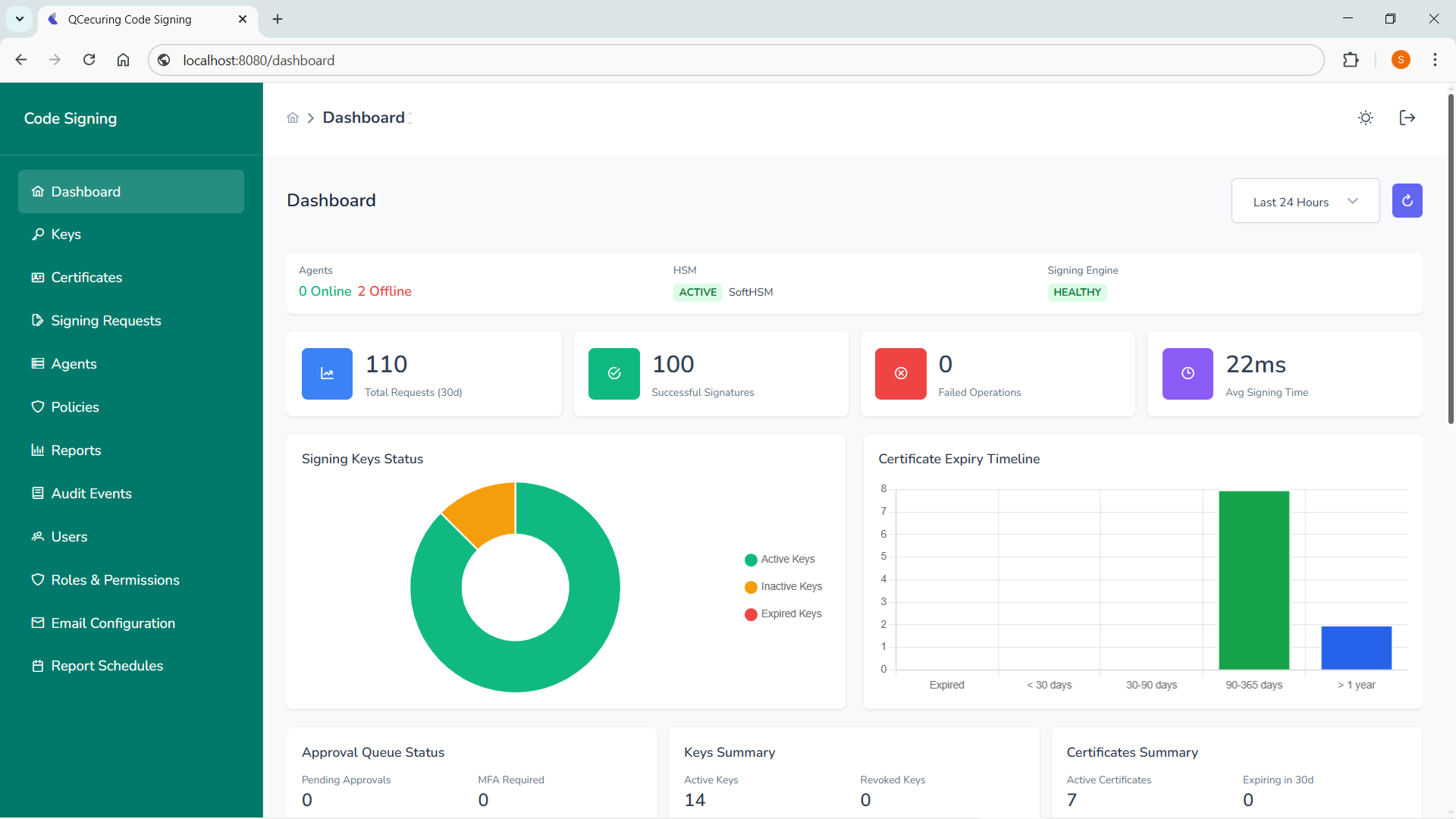
Section titled “Platform Installation”The QCecuring Code Signing Platform is delivered as a unified Spring Boot application containing:
- REST API
- Web UI
- Signing Engine
- Policy Engine
- Audit Layer
It runs as a single executable JAR.
Prerequisites
Section titled “Prerequisites”Required
Section titled “Required”- Java 21+
- MongoDB
Optional (Production)
Section titled “Optional (Production)”- HSM or Cloud KMS
- TLS certificates
- Reverse proxy (NGINX / Load Balancer)
Step 1 — Verify Java
Section titled “Step 1 — Verify Java”java -versionExpected: Java 21 or higher.
Step 2 — Start Dependencies
Section titled “Step 2 — Start Dependencies”Start MongoDB
Section titled “Start MongoDB”docker run -d \ --name mongo \ -p 27017:27017 \ mongo:7Step 3 — Run the Platform
Section titled “Step 3 — Run the Platform”Navigate to your JAR location:
cd installersStart the application:
java -jar code-signing-0.0.1-SNAPSHOT.jarYou should see:
:: Spring Boot :: (v3.x.x)No active profile set, falling back to default profile: "dev"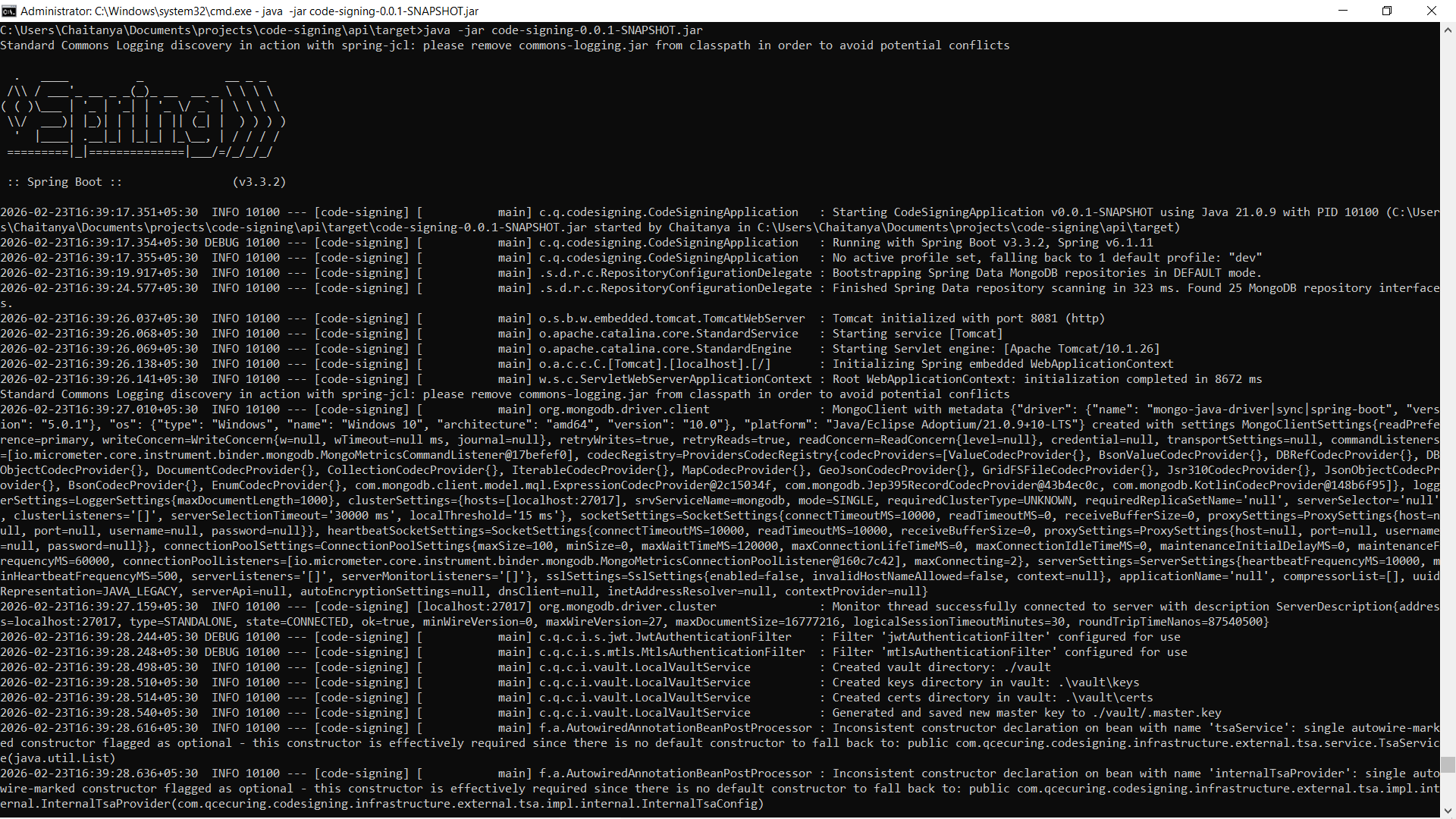
The application will start on:
http://localhost:8080Profiles
Section titled “Profiles”The platform supports environment-based profiles.
Development Mode (default)
Section titled “Development Mode (default)”java -jar code-signing.jarUses:
- Local MongoDB
- Software keys (if configured)
Production Mode
Section titled “Production Mode”java -jar code-signing.jar --spring.profiles.active=prodOr using environment variable:
export SPRING_PROFILES_ACTIVE=prodjava -jar code-signing.jarProduction mode enables:
- Strict security policies
- HSM enforcement
- mTLS agent validation
- Hardened configurations
Configuration via Environment Variables
Section titled “Configuration via Environment Variables”Example:
.env settings
# ===============================# Code Signing Platform - Environment Variables Template# ===============================# Copy this file to .env and fill in the values# For production deployment, set these as system environment variables
# ===============================# Spring Profile# ===============================SPRING_PROFILES_ACTIVE=prod
# ===============================# Server Configuration# ===============================SERVER_PORT=8080
# ===============================# MongoDB Configuration (REQUIRED in production)# ===============================MONGODB_URI=mongodb://localhost:27017/your-code-signing-db
# ===============================# Vault Configuration (REQUIRED in production)# ===============================VAULT_LOCAL_PATH=/var/lib/qcecuring/code-signing/vaultVAULT_MASTER_KEY_PATH=/var/lib/qcecuring/code-signing/vault/master.key
# ===============================# JWT Configuration (REQUIRED in production)# ===============================# Generate a secure random key (min 256 bits):# openssl rand -base64 32JWT_SECRET=THIS_IS_LONG_STRING_HAS_TO_BE_CHANGED_12345JWT_EXPIRATION=1800000
# ===============================# Email Configuration# ===============================EMAIL_ENABLED=trueEMAIL_PROVIDER=gmailEMAIL_FROM=noreply@qcecuring.com
# Gmail ConfigurationEMAIL_HOST=smtp.gmail.comEMAIL_PORT=587EMAIL_USERNAME=your-email@gmail.comEMAIL_PASSWORD=your-app-passwordEMAIL_GMAIL_USERNAME=your-email@gmail.comEMAIL_GMAIL_PASSWORD=your-app-passwordEMAIL_GMAIL_FROM=noreply@qcecuring.com
# ===============================# mTLS Configuration# ===============================MTLS_ENABLED=trueMTLS_DEV_AGENT_ID=dev-agent
# SSL/TLS Configuration (if using HTTPS)SERVER_SSL_ENABLED=false# SERVER_SSL_KEYSTORE=/path/to/keystore.p12# SERVER_SSL_KEYSTORE_PASSWORD=changeit# SERVER_SSL_KEY_ALIAS=server# SERVER_SSL_CLIENT_AUTH=want# SERVER_SSL_TRUSTSTORE=/path/to/truststore.p12# SERVER_SSL_TRUSTSTORE_PASSWORD=changeit
# ===============================# HSM Configuration# ===============================HSM_DEFAULT_PROVIDER=pkcs11
# PKCS#11 Configuration (SoftHSM or Hardware HSM)HSM_PKCS11_ENABLED=falsePKCS11_LIBRARY=/usr/local/lib/softhsm/libsofthsm2.soPKCS11_PIN=1234PKCS11_SLOT=0PKCS11_TOKEN_LABEL=dev-tokenPKCS11_PROVIDER_NAME=CustomPKCS11_PROVIDER_ID=pkcs11-default
# ===============================# Reporting & Scheduling# ===============================REPORTING_ENABLED=trueREPORTING_POLLING_INTERVAL=60000SCHEDULING_ENABLED=true
# ===============================# Swagger/OpenAPI Configuration# ===============================SWAGGER_ENABLED=falseSWAGGER_LOG_ACCESS=true
And launching application
java -jar code-signing.jar --spring.profiles.active=prodHealth Check
Section titled “Health Check”Verify application health:
curl http://localhost:8080/actuator/healthExpected:
{ "status": "UP"}Accessing the UI
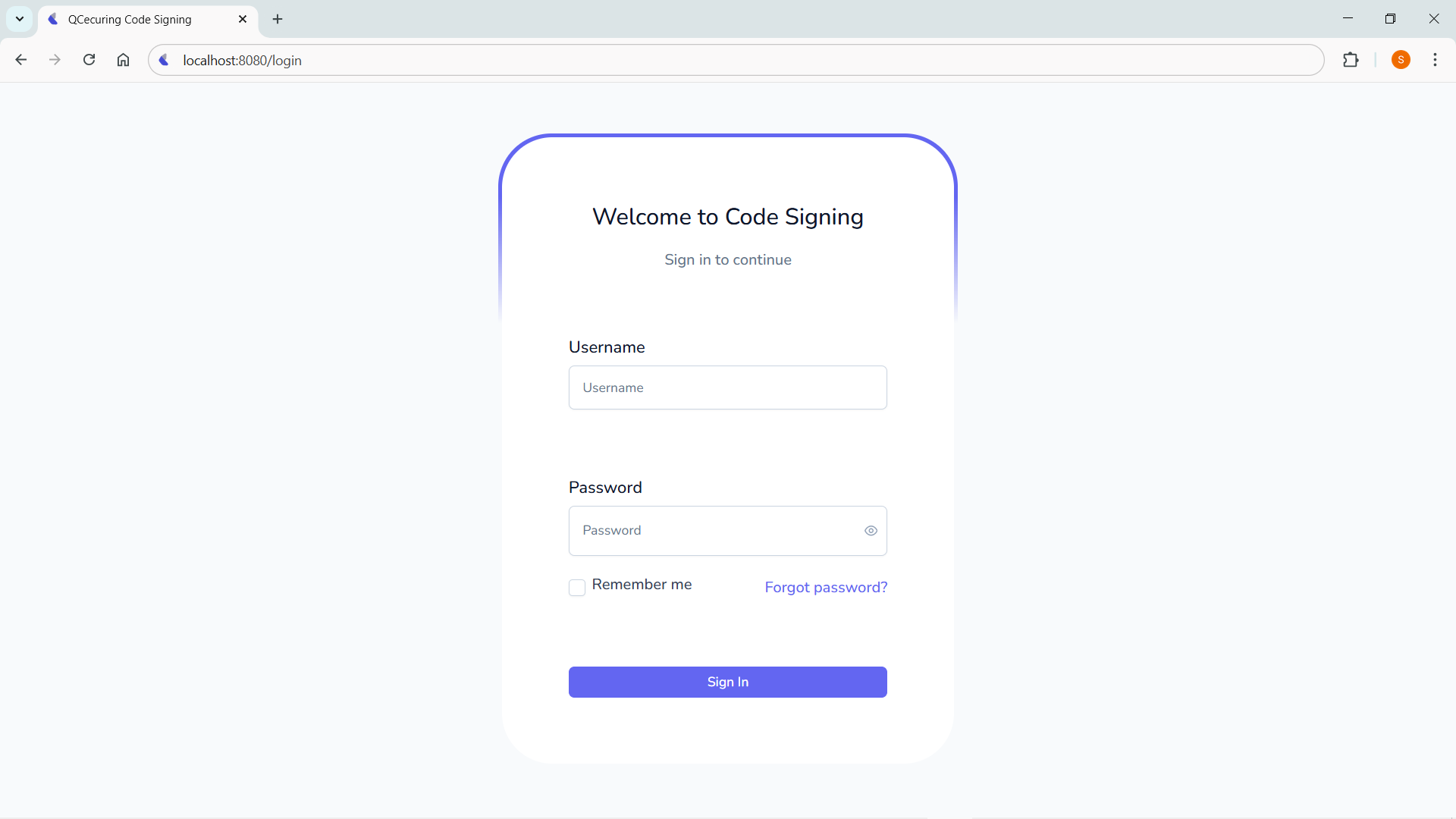
Section titled “Accessing the UI”Once started, open:
http://localhost:8080The UI is served from the same application.
Production Deployment Pattern
Section titled “Production Deployment Pattern”Recommended:
- Run behind reverse proxy
- Enable HTTPS
- Enable HSM-backed keys
- Enable mTLS for agents
- Configure firewall rules