Windows Key Storage Provider (KSP)
Windows Key Storage Provider (KSP)
Section titled “Windows Key Storage Provider (KSP)”The QCecuring Windows Key Storage Provider (KSP) enables native Windows applications to perform secure code signing operations through the QCecuring platform.
It integrates with:
- signtool
- PowerShell signing
- Windows CNG APIs
- Any application using the Microsoft Cryptography Next Generation (CNG) framework
The provider does not store private keys locally.
All signing operations are forwarded securely to the QCecuring backend via the local signing agent.
Prerequisites
Section titled “Prerequisites”- Windows 10 or later
- Visual Studio with C++ Build Tools
- Administrator privileges (for installation)
- QCecuring Java Signing Agent running
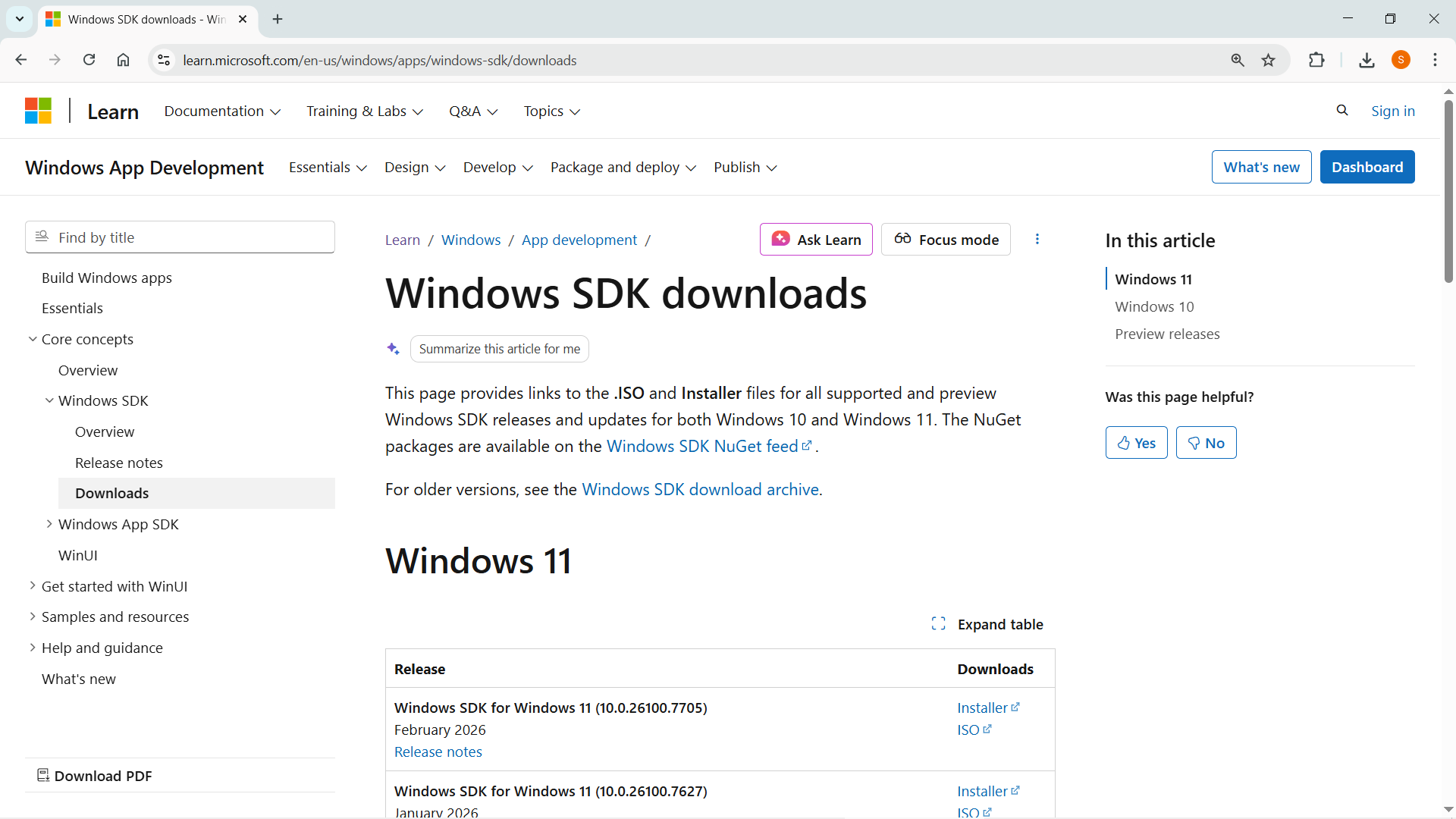
You must install the Windows SDK Signing Tools.
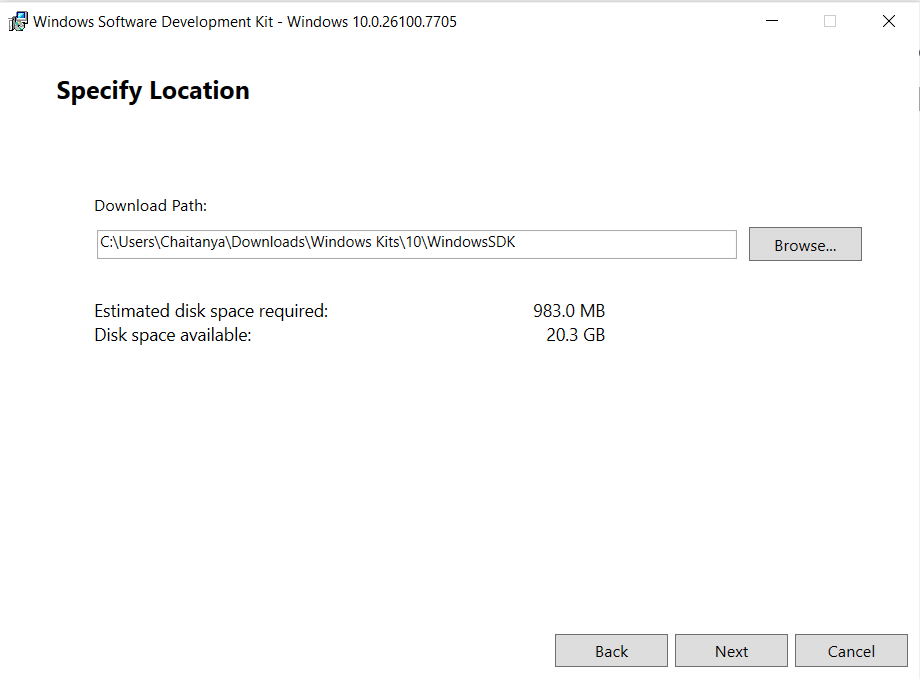
Open installation setup and select Download Path.
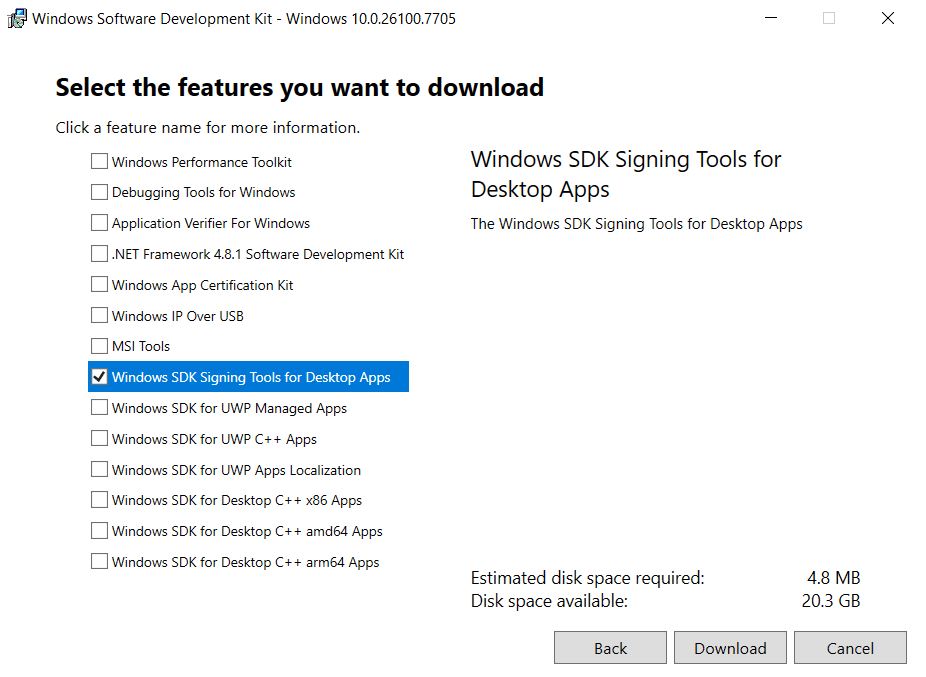
During installation select Windows SDK Signing Tools for Desktop Apps.
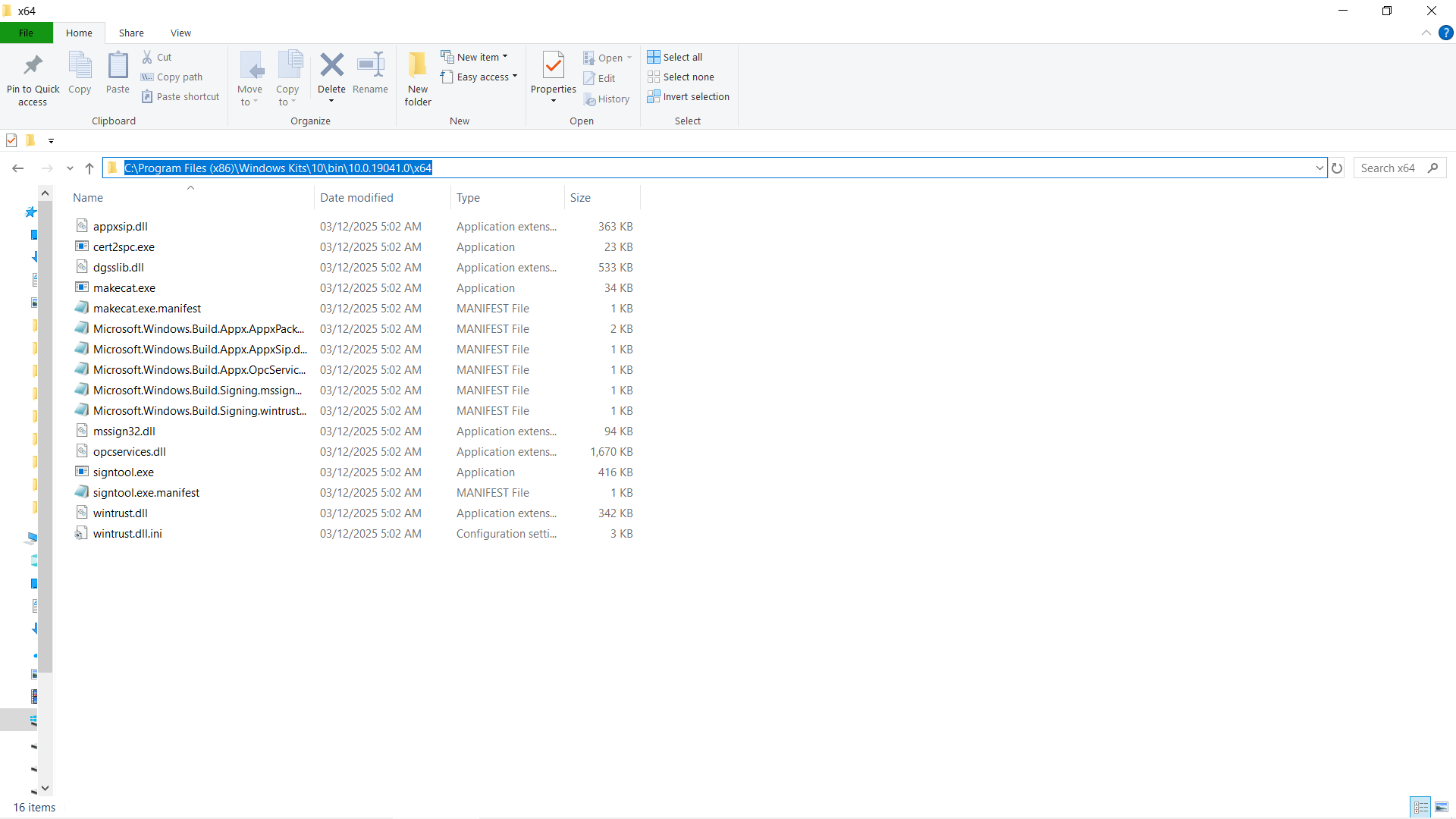
After installation ensure the SDK bin directory containing signtool.exe is available in the system PATH.
Install the KSP
Section titled “Install the KSP”- Navigate to the KSP installer directory:
cd "<ksp-installer-directory>"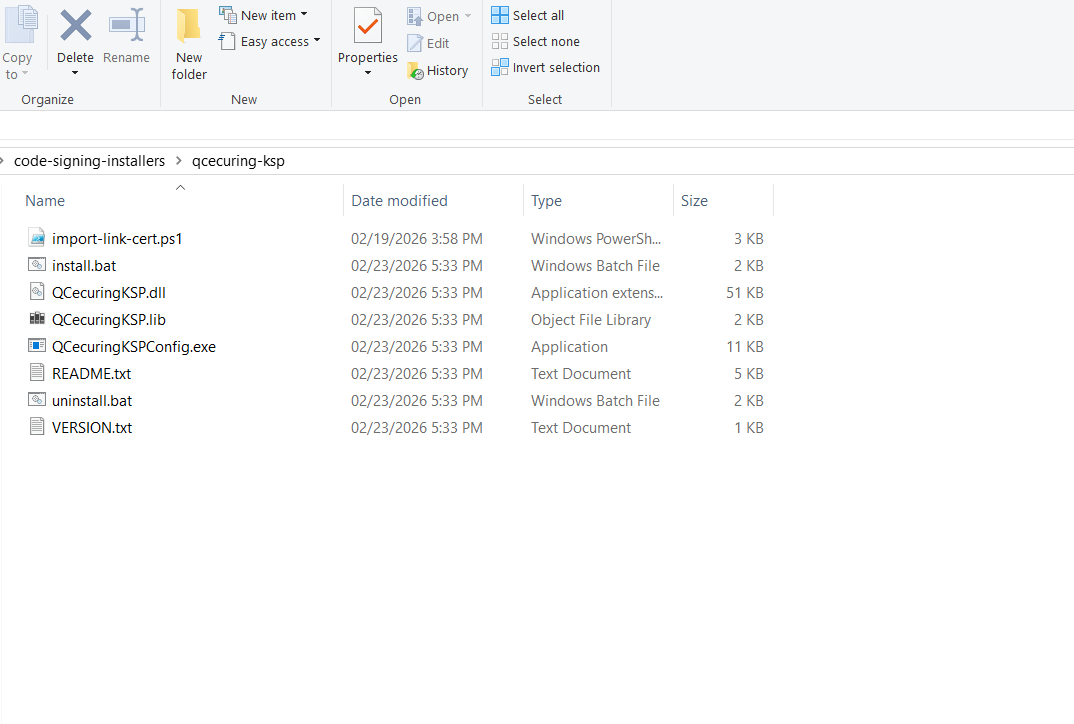
⚠️ Installation requires Administrator privileges.
Run:
install.bat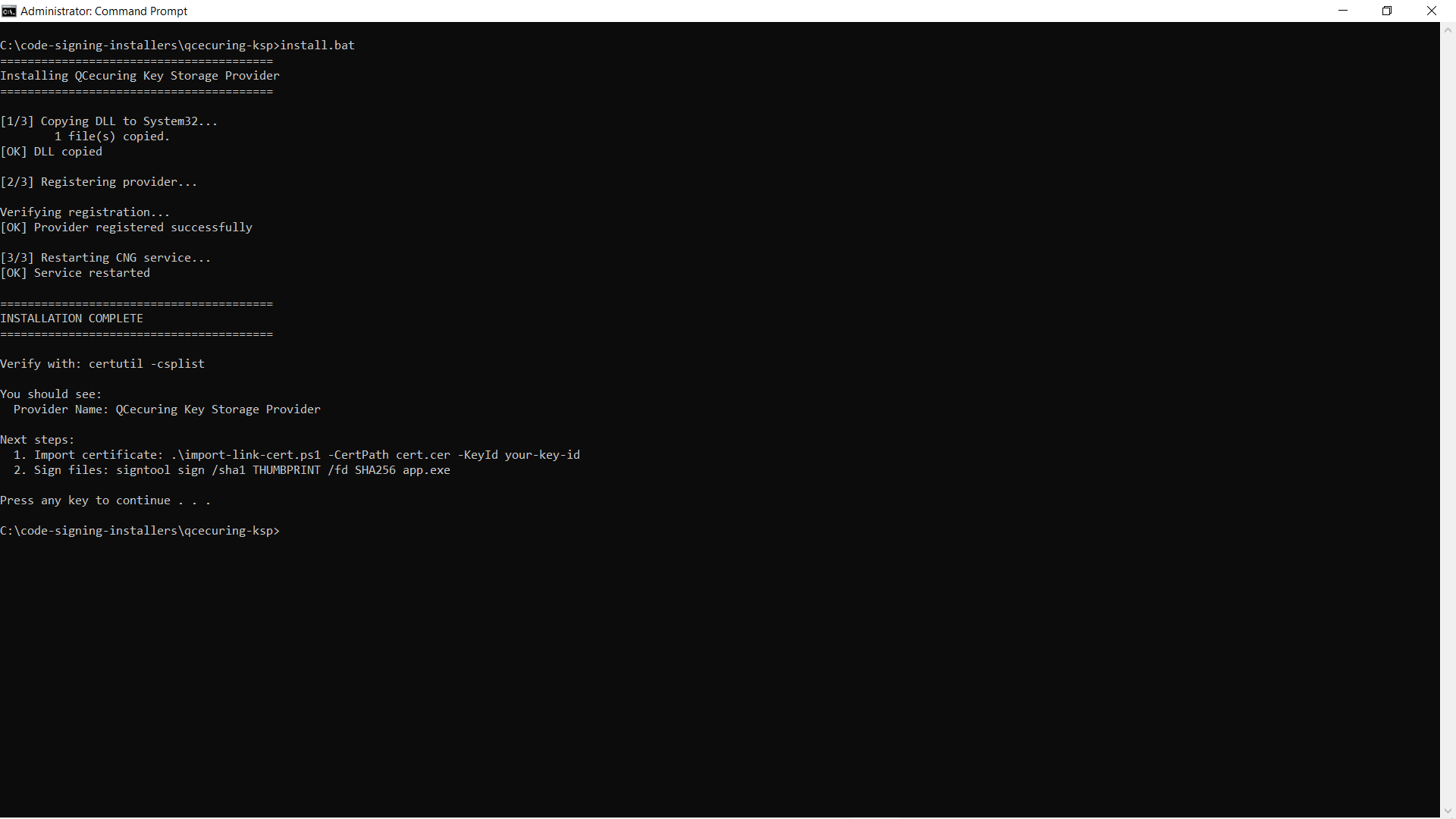
This registers the provider with Windows CNG.
Verify Installation
Section titled “Verify Installation”Run:
certutil -csplistYou should see:
Provider Name: QCecuring Key Storage Provider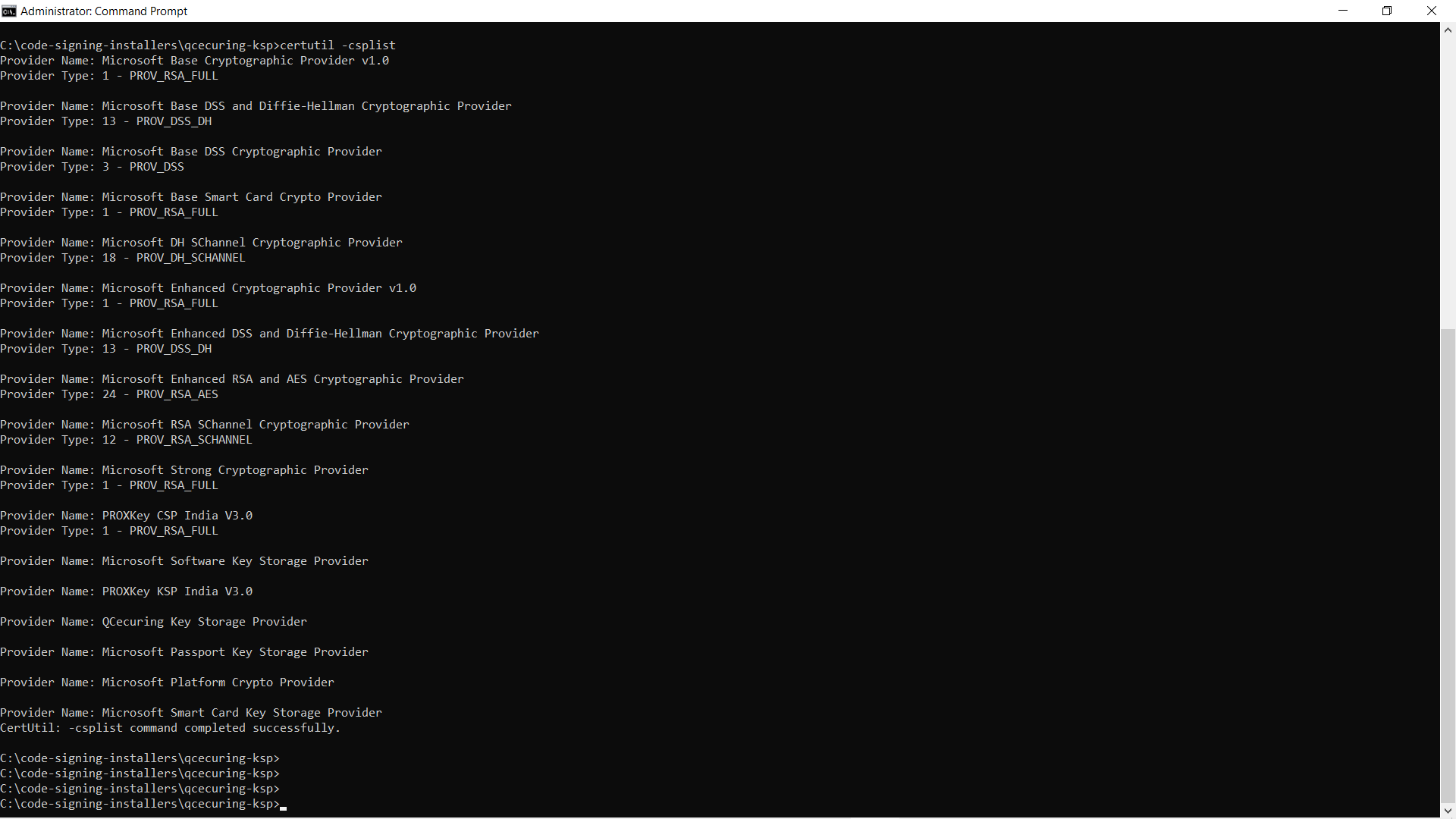
This confirms successful registration.
Using the Provider
Section titled “Using the Provider”Once installed:
- Windows applications can select QCecuring Key Storage Provider
- signtool can use certificates backed by QCecuring
- The provider communicates with the local QCecuring agent
- The agent securely forwards signing requests to the backend platform
Uninstall
Section titled “Uninstall”To remove the provider:
⚠️ Run as Administrator
uninstall.bat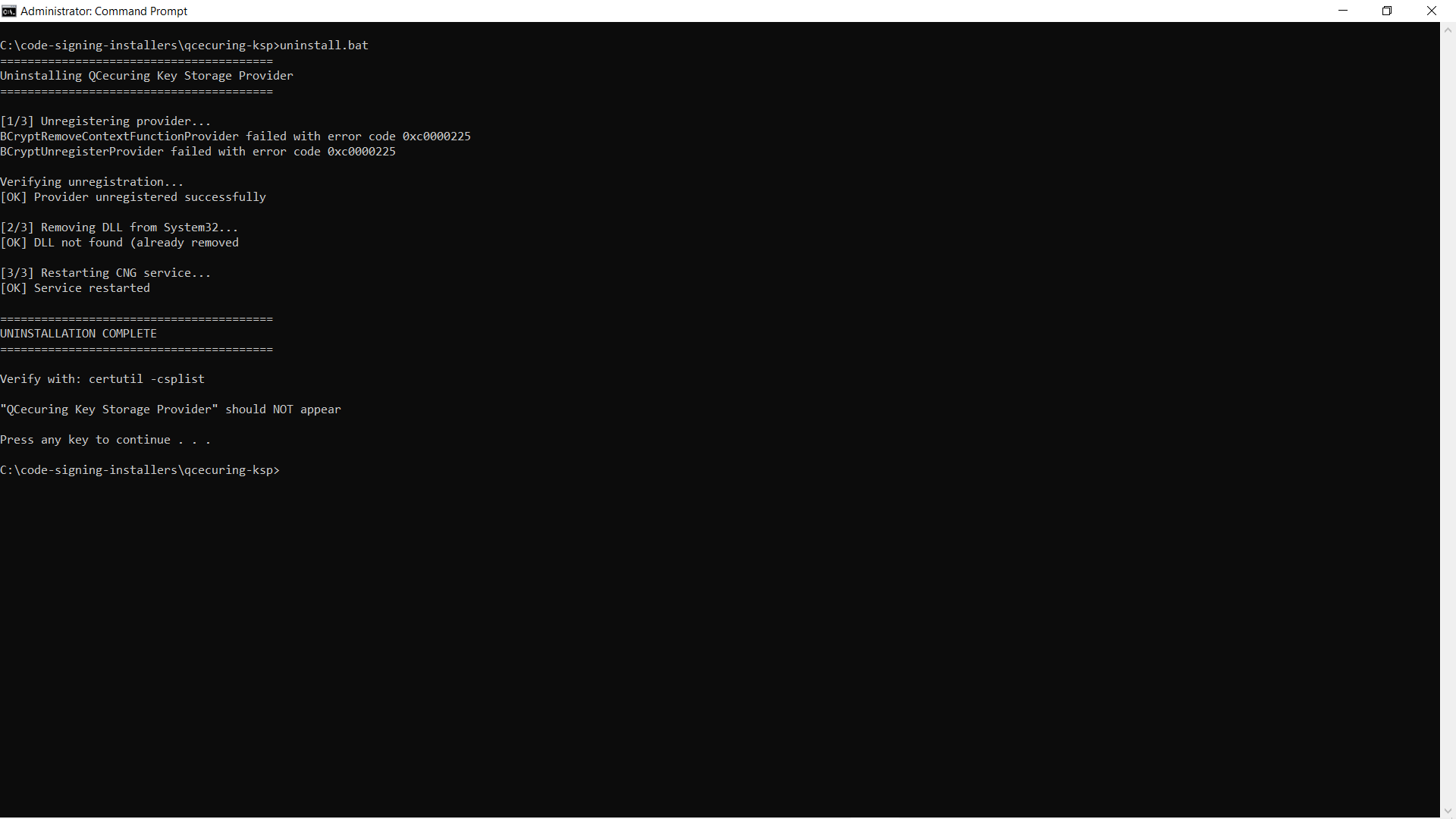
Verify removal:
certutil -csplistThe provider name should no longer appear.
Troubleshooting
Section titled “Troubleshooting”Provider Not Listed
Section titled “Provider Not Listed”- Ensure installation was run as Administrator
- Confirm build completed successfully
- Restart the machine if required
Signing Fails
Section titled “Signing Fails”- Confirm QCecuring Agent is running
- Confirm backend platform is reachable
- Check agent logs for connectivity issues